
FOSSBilling BlueOnyx Module
The BlueOnyx Server Module for FOSSBilling integrates BlueOnyx hosting panel management directly into the FOSSBilling billing and order system. It allows hosting providers to sell BlueOnyx Vsites as products, provision them automatically on one or more BlueOnyx servers, and give customers a self-service interface for password changes, domain changes, SSL status checks, and Let's Encrypt certificate requests — all without leaving the FOSSBilling interface.
The module provides a BlueOnyx-specific hosting plan editor, full Vsite lifecycle integration (create, suspend, unsuspend, cancel, delete, change package, change password), customer-facing SSL status and Let's Encrypt actions, and the required theme overrides for the FOSSBilling admin and client UI. No FOSSBilling core files are modified.
Please note: The module requires a BlueOnyx server with APIv2 enabled and a working FOSSBilling installation with module installation support.
A FOSSBilling PKG for BlueOnyx 5212R, 5211R and 5210R is available free of charge in the BlueOnyx Shop as part of our Free Bundle.
How does it work?
FOSSBilling handles billing, orders, invoicing, and customer management. The BlueOnyx module extends this by providing a server manager that talks to the BlueOnyx APIv2 endpoint. When a customer orders a hosting product, FOSSBilling provisions the Vsite on the assigned BlueOnyx server through the API. When an order is suspended, canceled, or deleted, the corresponding Vsite is suspended, destroyed, or cleaned up on the BlueOnyx side as well.
The module supports two API modes:
- Local mode: FOSSBilling and BlueOnyx run on the same server. The API is reached on
127.0.0.1:9092using administrator username and password authentication. - Remote mode: FOSSBilling runs on a different server and connects to the BlueOnyx API over HTTPS on port
81using a client-secret for authentication.
Let's Encrypt certificate requests submitted by customers are queued and processed asynchronously during the regular FOSSBilling admin cron run, so long-running BlueOnyx operations never block the customer's browser request.
Prerequisites
Before installing the module, make sure the following requirements are met:
- A BlueOnyx server (5210R, 5211R, or 5212R) with the APIv2 endpoint enabled.
- A FOSSBilling installation (0.8.2 or later) with module installation support.
- For remote mode: the BlueOnyx API must be reachable from the FOSSBilling server over HTTPS, and a client-secret must be generated on the BlueOnyx side for the FOSSBilling server's IP address.
Step 1: Enable the BlueOnyx API
On the BlueOnyx server, go to Server Management / Maintenance / API. Enable the API and configure the following settings:
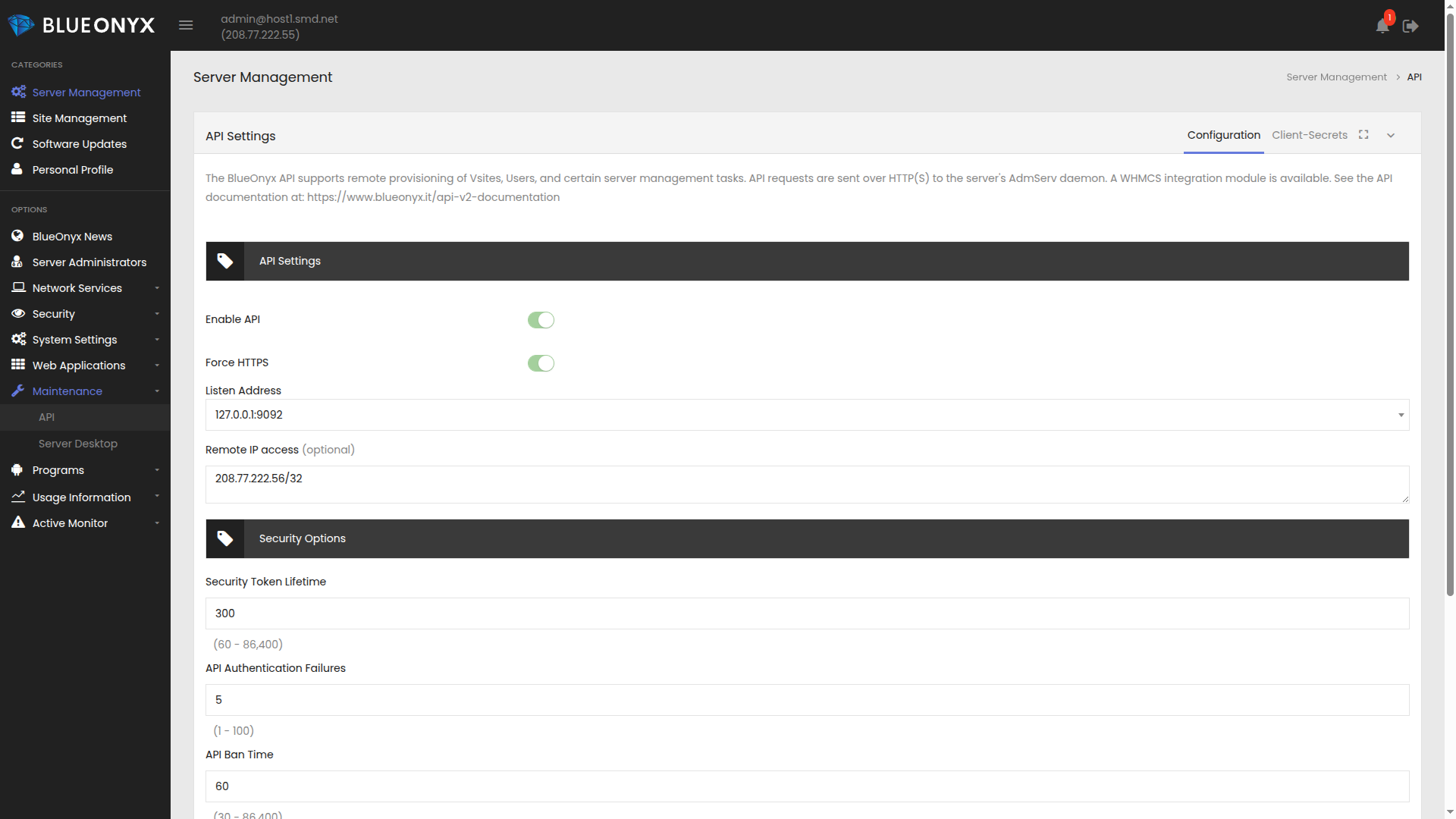
The key settings are:
- Enable API: Must be turned on.
- Force HTTPS: Recommended. Ensures API traffic is encrypted.
- Listen Address: The default
127.0.0.1:9092is used for local mode. If FOSSBilling runs on a different server, add the remote IP or CIDR range under Remote IP access. - Security options: Configure token lifetime, authentication failure threshold, and ban time according to your security requirements.
If FOSSBilling runs on a separate server (remote mode), switch to the Client-Secrets tab and create a client-secret for the FOSSBilling server's IP address. The FOSSBilling server IP must also be listed under Remote IP access on the Configuration tab.
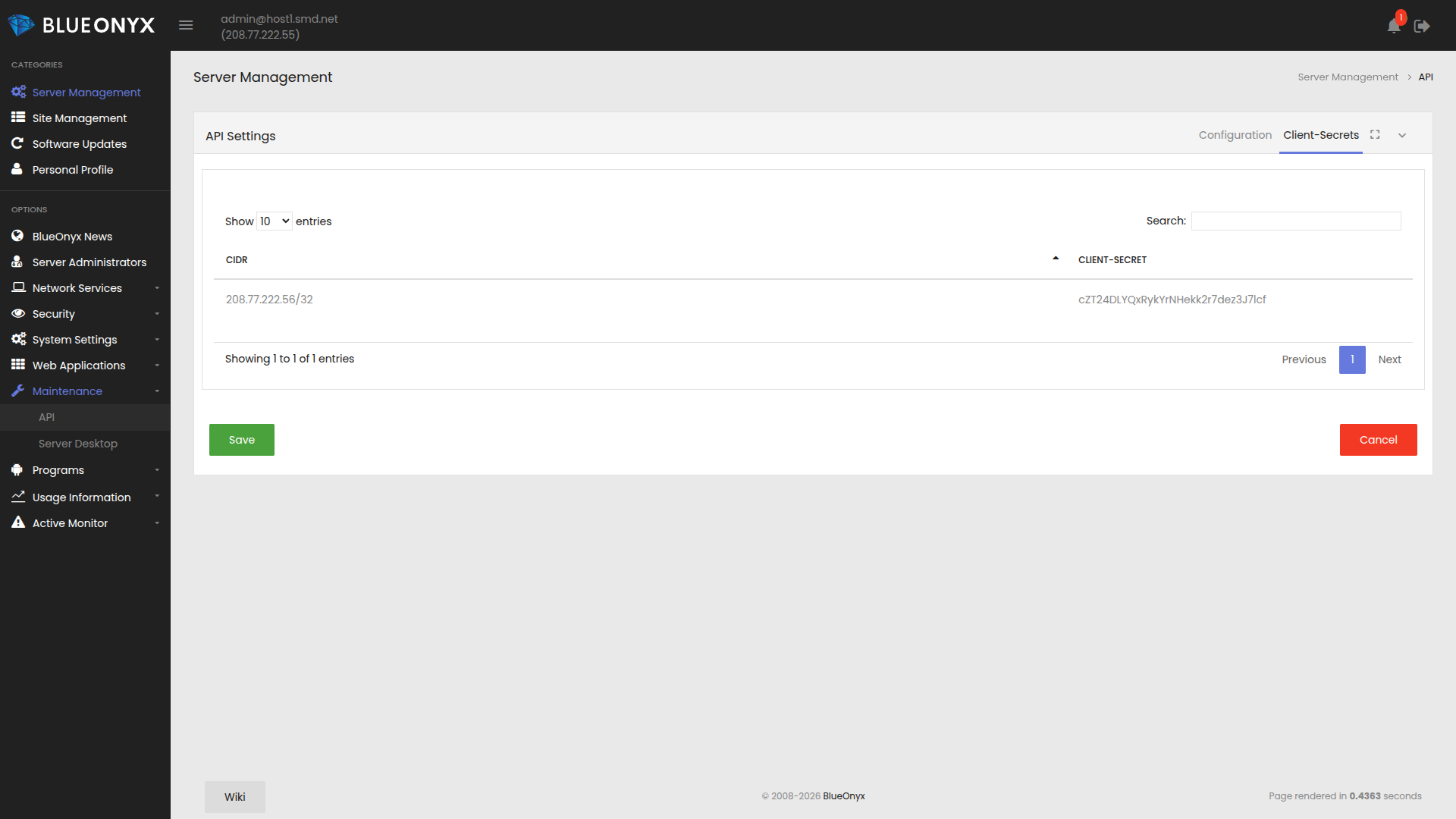
Copy the generated client-secret — you will need it when adding the server in FOSSBilling.
Step 2: Install and activate the module
Log into the FOSSBilling admin area and navigate to Extensions. The BlueOnyx Server Module appears in the list of installed extensions.
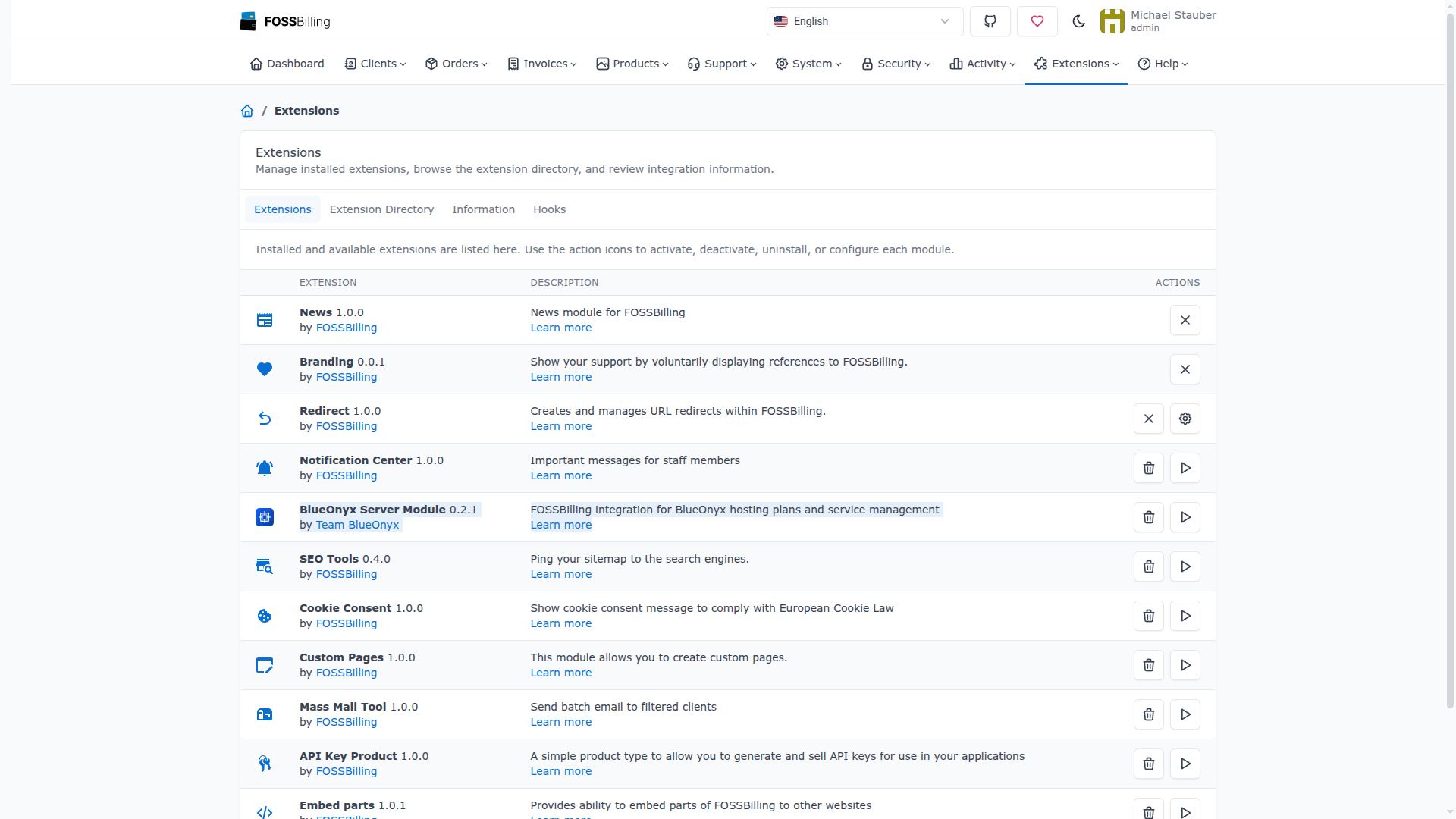
Click the activate button next to the BlueOnyx Server Module entry and confirm the activation.
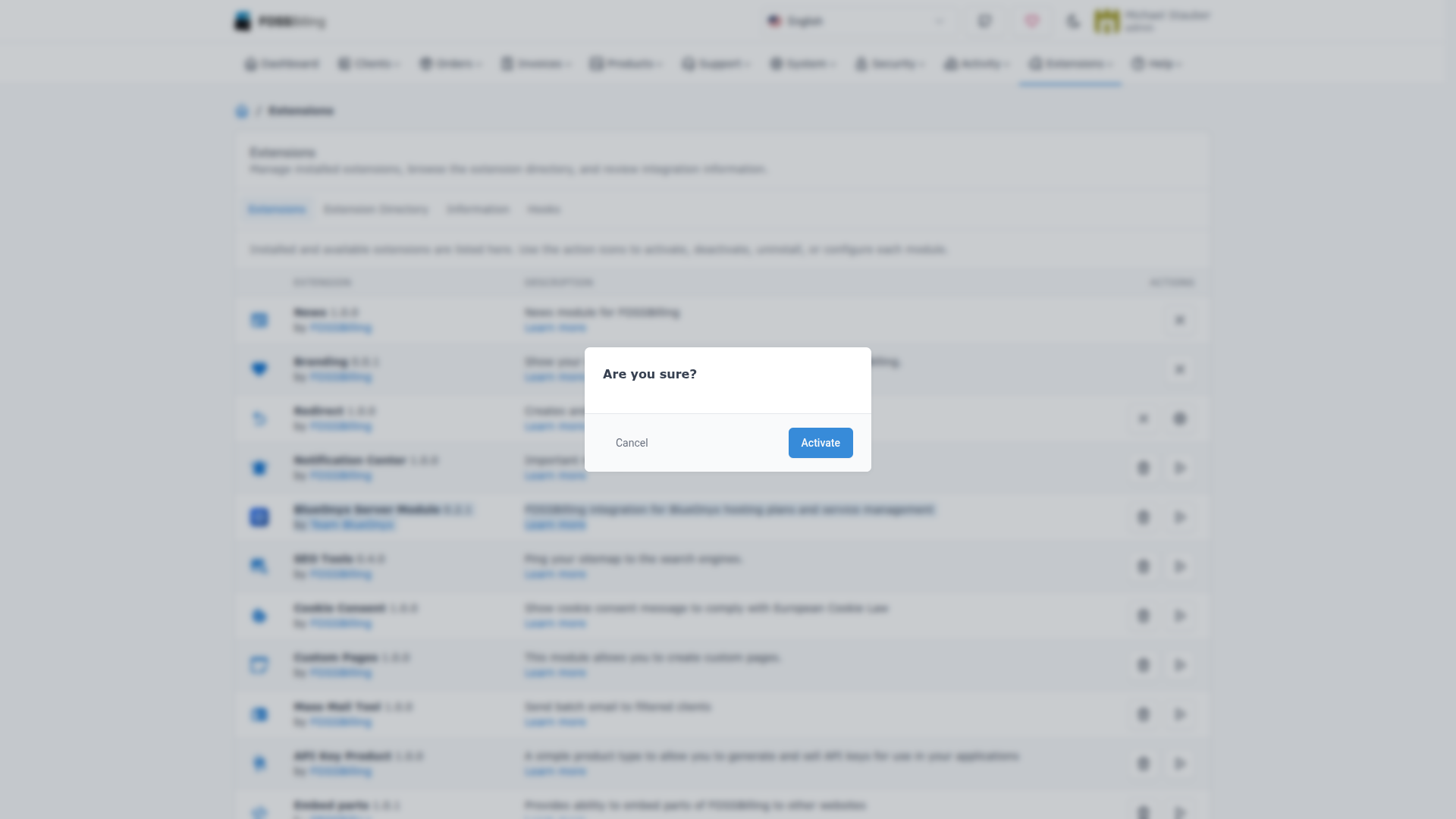
The module install hook automatically deploys the BlueOnyx-specific template overrides into the html_custom directories of the active FOSSBilling themes. No manual file copying is required.
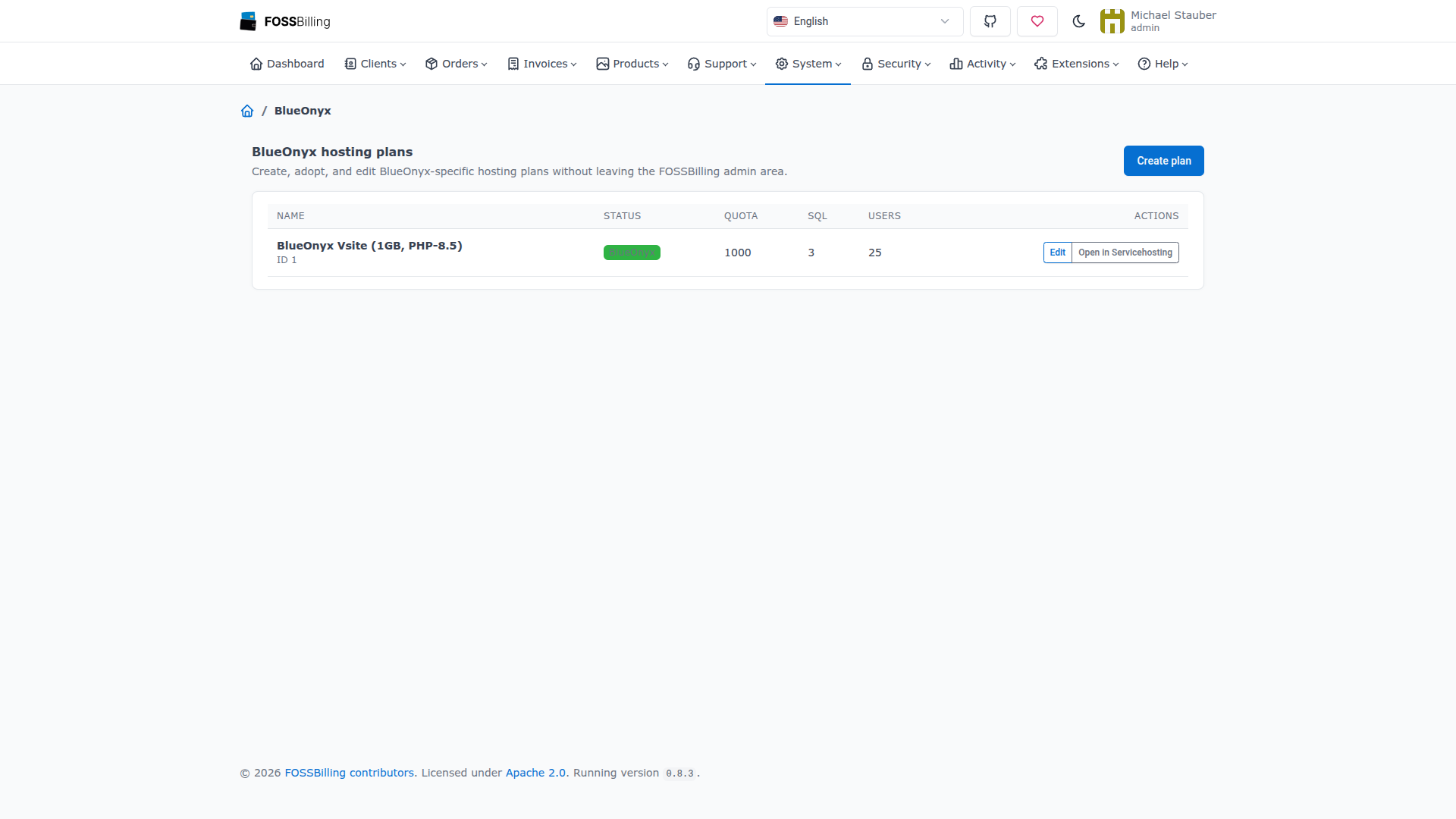
After activation, a new BlueOnyx entry appears under the System menu in the FOSSBilling admin navigation.
Step 3: Add a BlueOnyx server
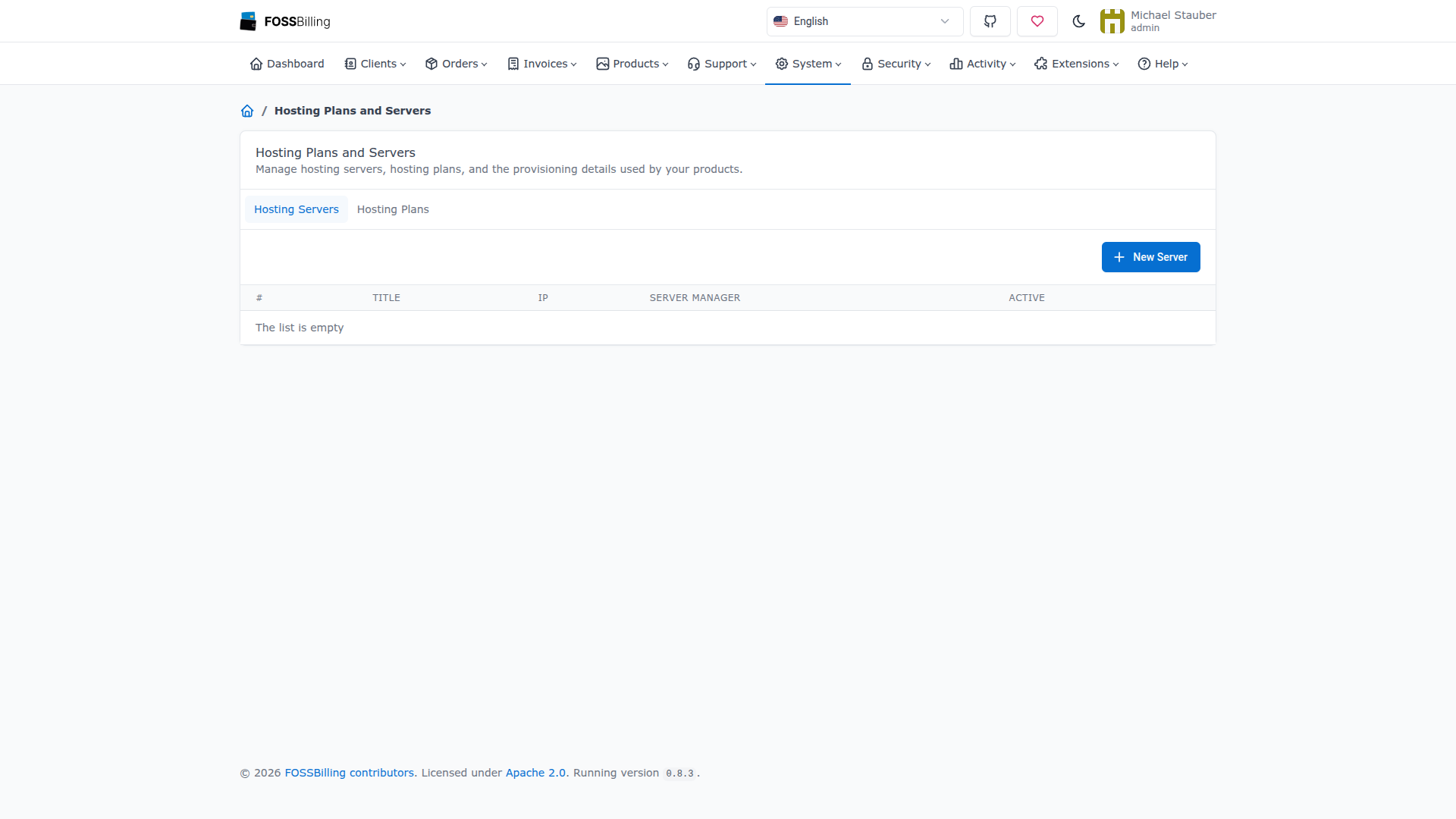
Navigate to System / Hosting Plans and Servers and switch to the Hosting Servers tab. Click + New Server to add a BlueOnyx server.
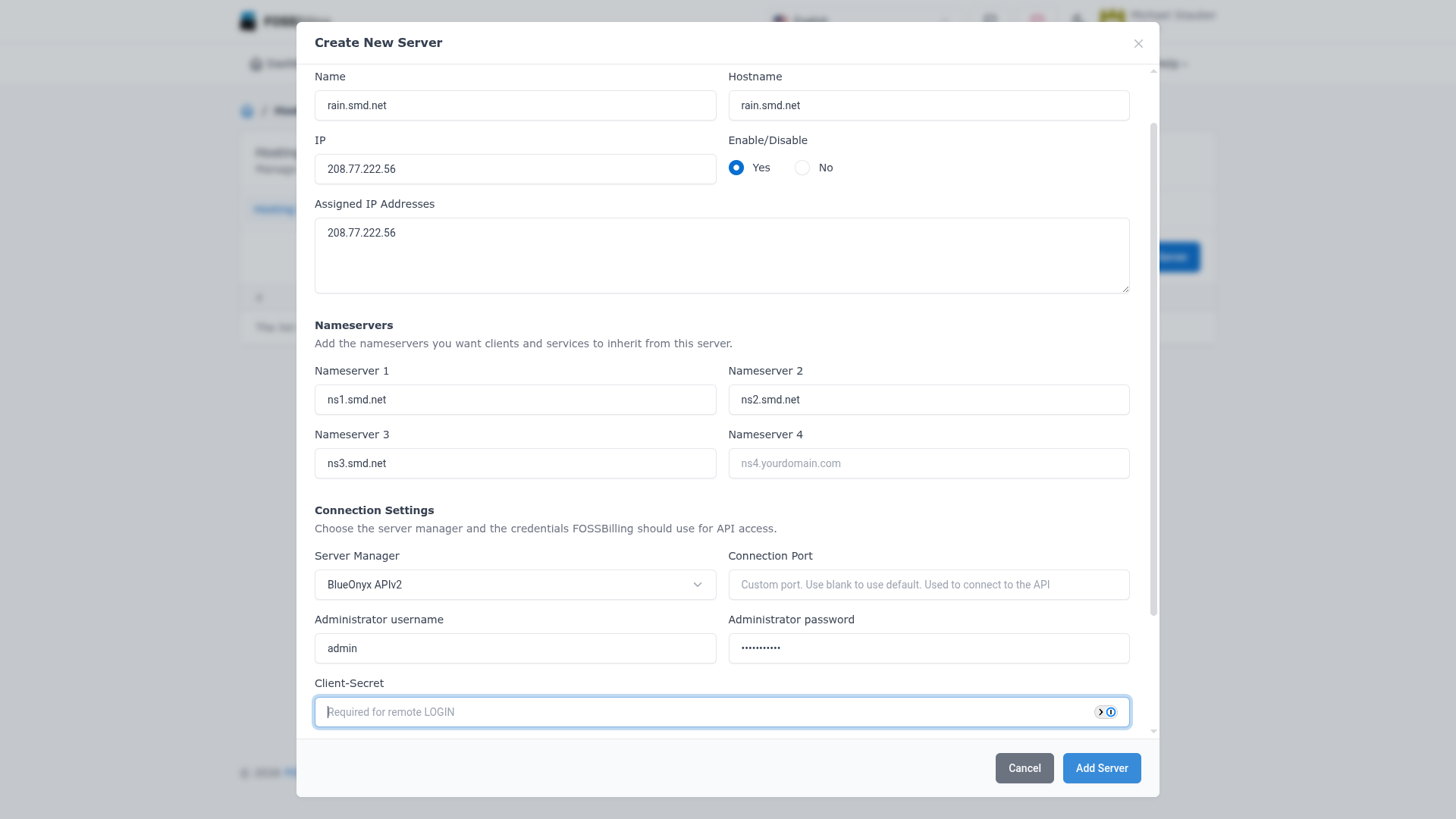
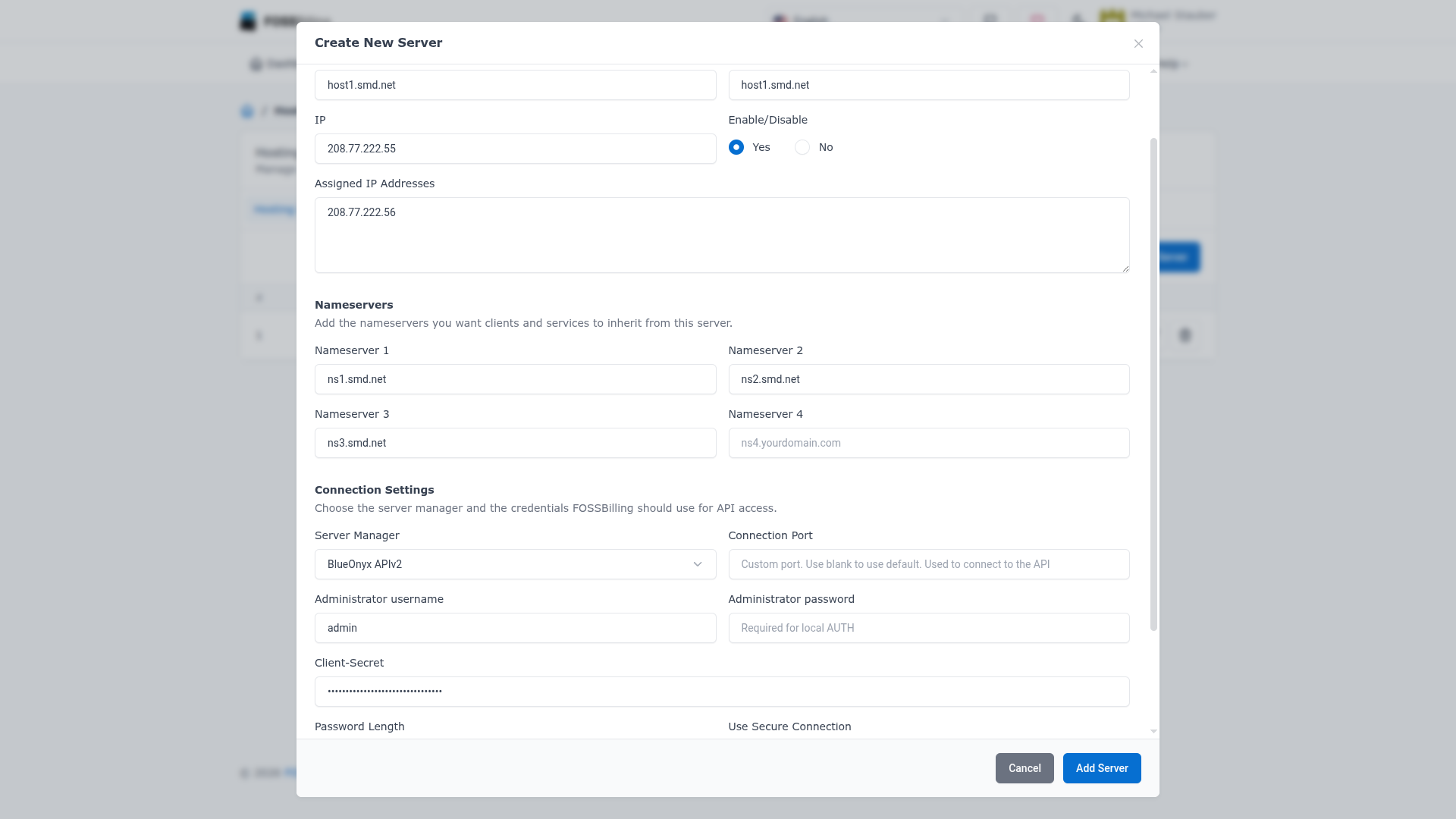
Fill in the server details:
- Name and Hostname: The hostname of the BlueOnyx server.
- IP: The primary IP address of the BlueOnyx server.
- Assigned IP Addresses: IP addresses available for Vsite provisioning on this server.
- Nameservers: The nameservers that provisioned Vsites should inherit.
- Server Manager: Select BlueOnyx APIv2 from the dropdown.
- Administrator username: The BlueOnyx administrator account name (typically
admin). - Administrator password: Required for local mode authentication.
- Client-Secret: Required for remote mode authentication. This is the secret generated on the BlueOnyx API Client-Secrets page.
For a local server where FOSSBilling and BlueOnyx run on the same machine, enter the administrator password and leave the client-secret blank:
For a remote BlueOnyx server, enter the client-secret generated on the BlueOnyx side and leave the password field blank:
After adding the server, click the test connection icon (the signal icon) to verify that FOSSBilling can reach the BlueOnyx API.
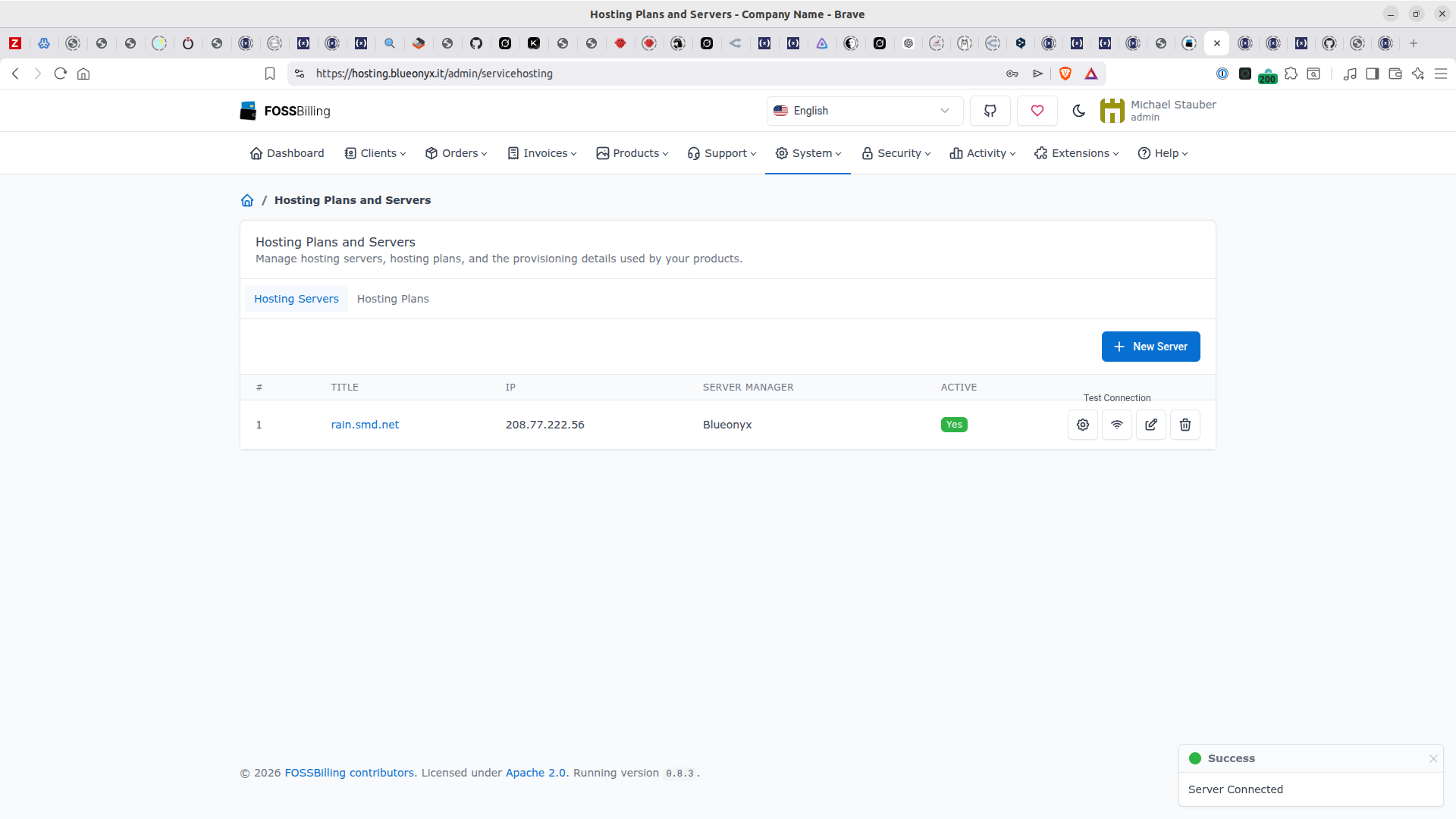
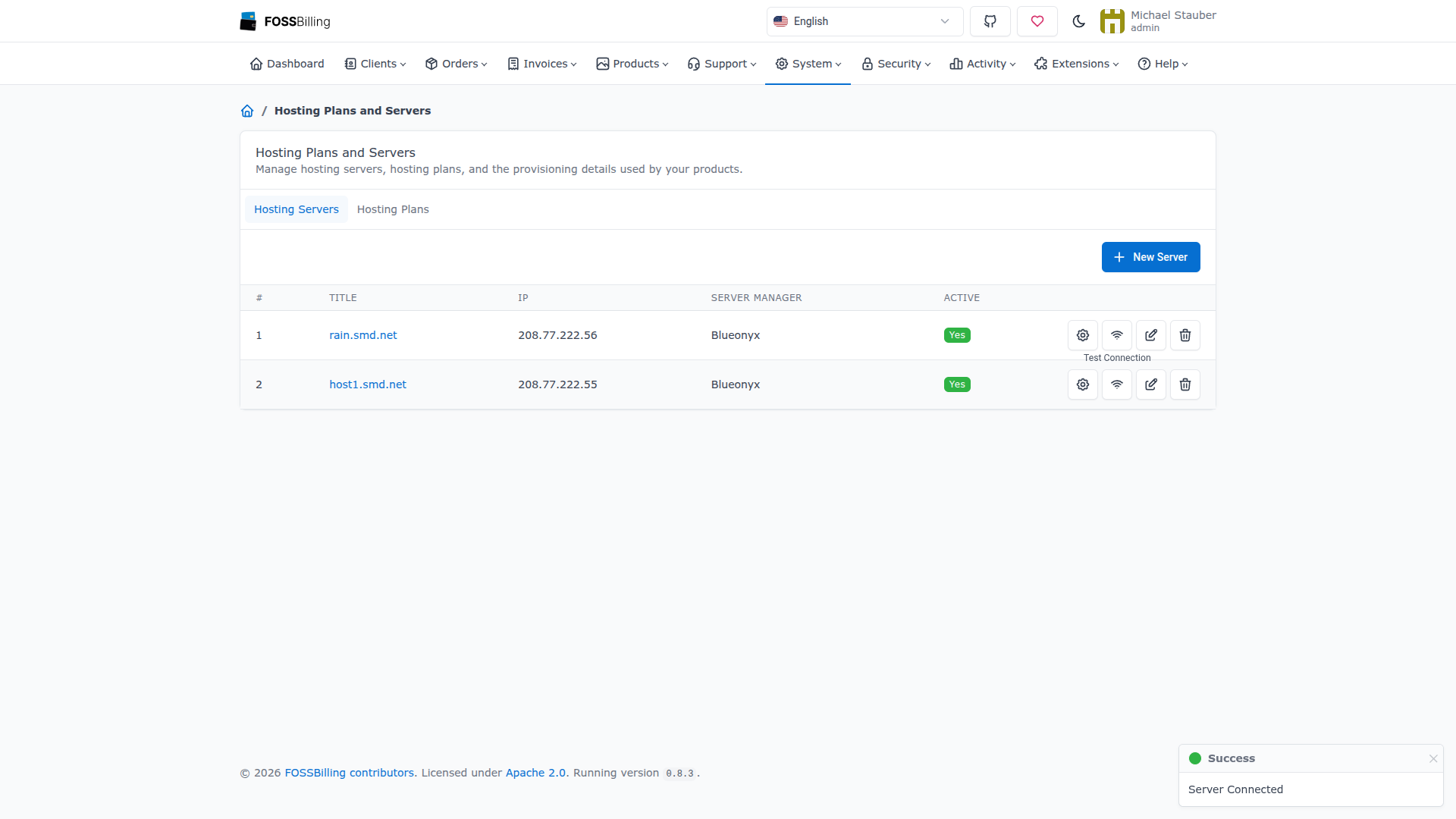
You can add multiple BlueOnyx servers. Each server can be assigned to different hosting products, allowing you to distribute provisioning across multiple BlueOnyx instances.
Step 4: Create a BlueOnyx hosting plan
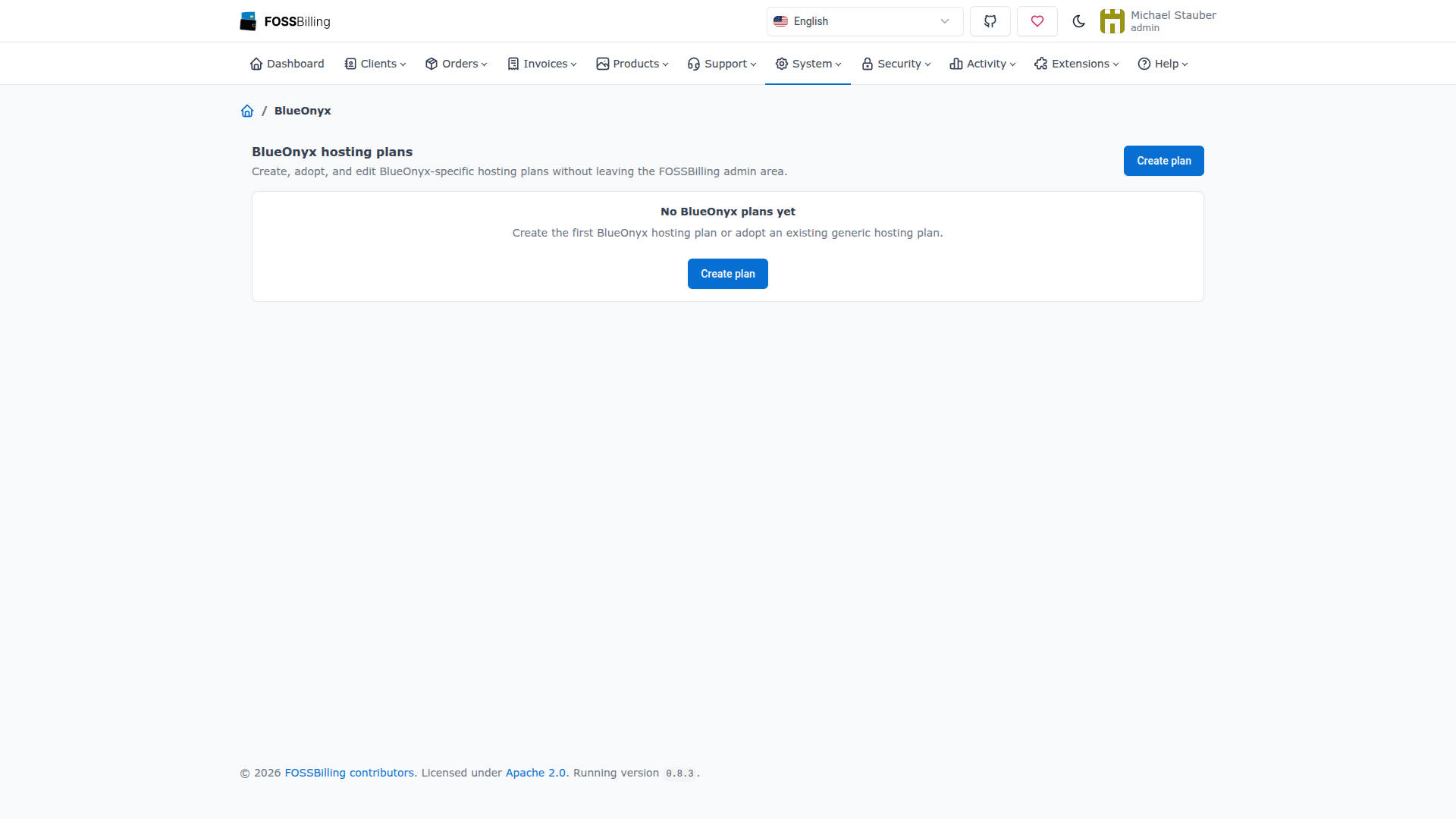
Navigate to System / BlueOnyx to open the BlueOnyx hosting plans page. Click Create plan to define a new hosting plan.
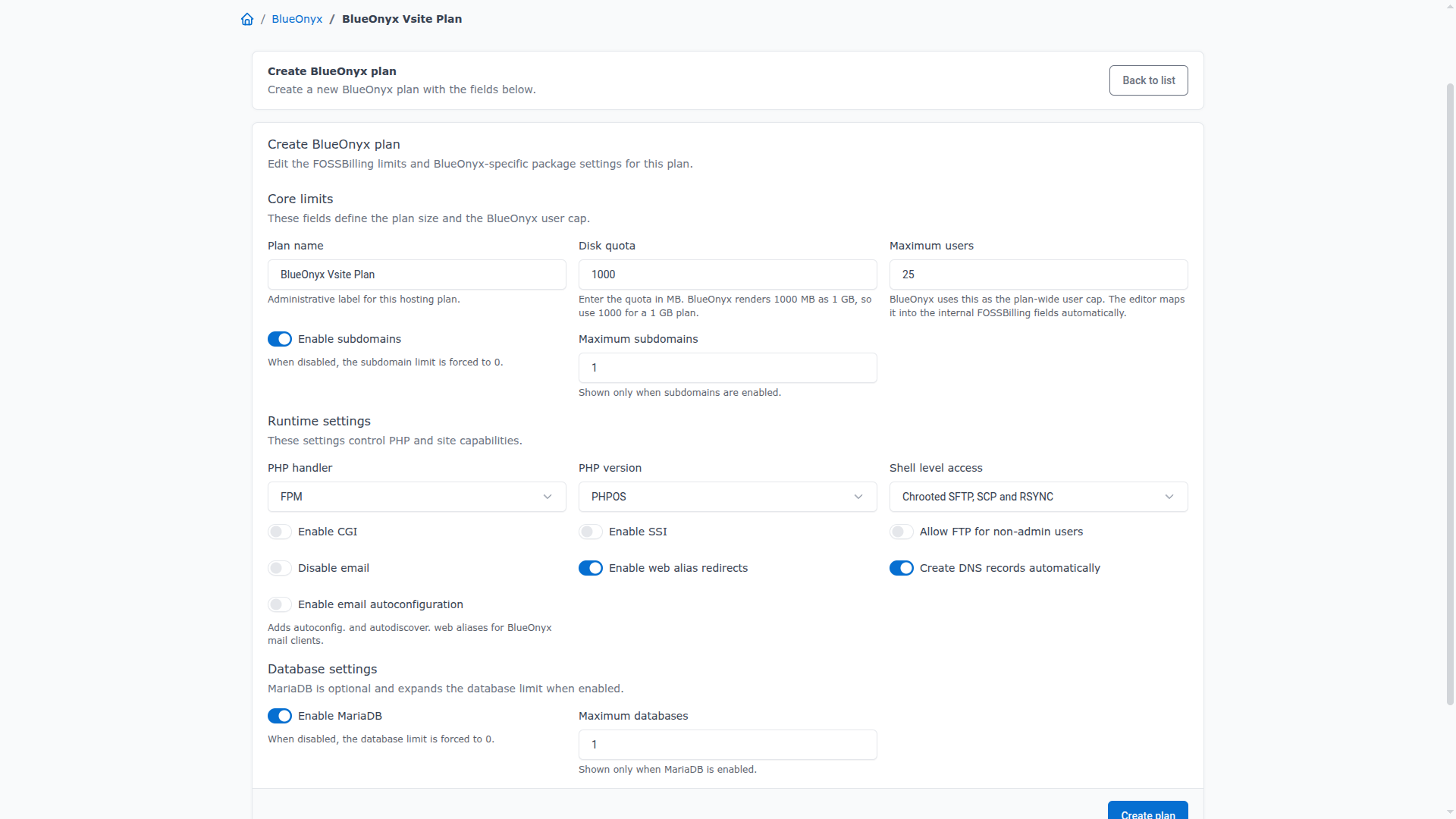
The plan editor provides three sections that map directly to BlueOnyx Vsite and package settings:
Core limits
Defines the plan size and BlueOnyx user cap:
- Plan name: An administrative label for the hosting plan.
- Disk quota: The disk quota in MB. BlueOnyx renders 1000 MB as 1 GB, so use 1000 for a 1 GB plan.
- Maximum users: The plan-wide user cap in BlueOnyx. The editor maps this into the internal FOSSBilling fields automatically.
- Subdomains: Enable or disable subdomains and set the maximum number.
Runtime settings
Controls PHP and site capabilities:
- PHP handler: FPM or suPHP.
- PHP version: PHPOS (system default) or a specific PHP version such as PHP85.
- Shell level access: None, chrooted SFTP/SCP/RSYNC, chrooted shell, or full shell access.
- CGI, SSI, FTP for non-admin users, email, web alias redirects, DNS auto-creation, email autoconfiguration: Toggle switches for each capability.
Database settings
Controls MariaDB provisioning:
- Enable MariaDB: When enabled, the module provisions a MySQL database and user on the BlueOnyx server. When disabled, the database limit is forced to zero.
- Maximum databases: The number of databases allowed for the Vsite.
After saving, the plan appears in the BlueOnyx hosting plans list with a green BlueOnyx status badge. Existing generic FOSSBilling hosting plans can also be adopted as BlueOnyx plans using the Adopt button.
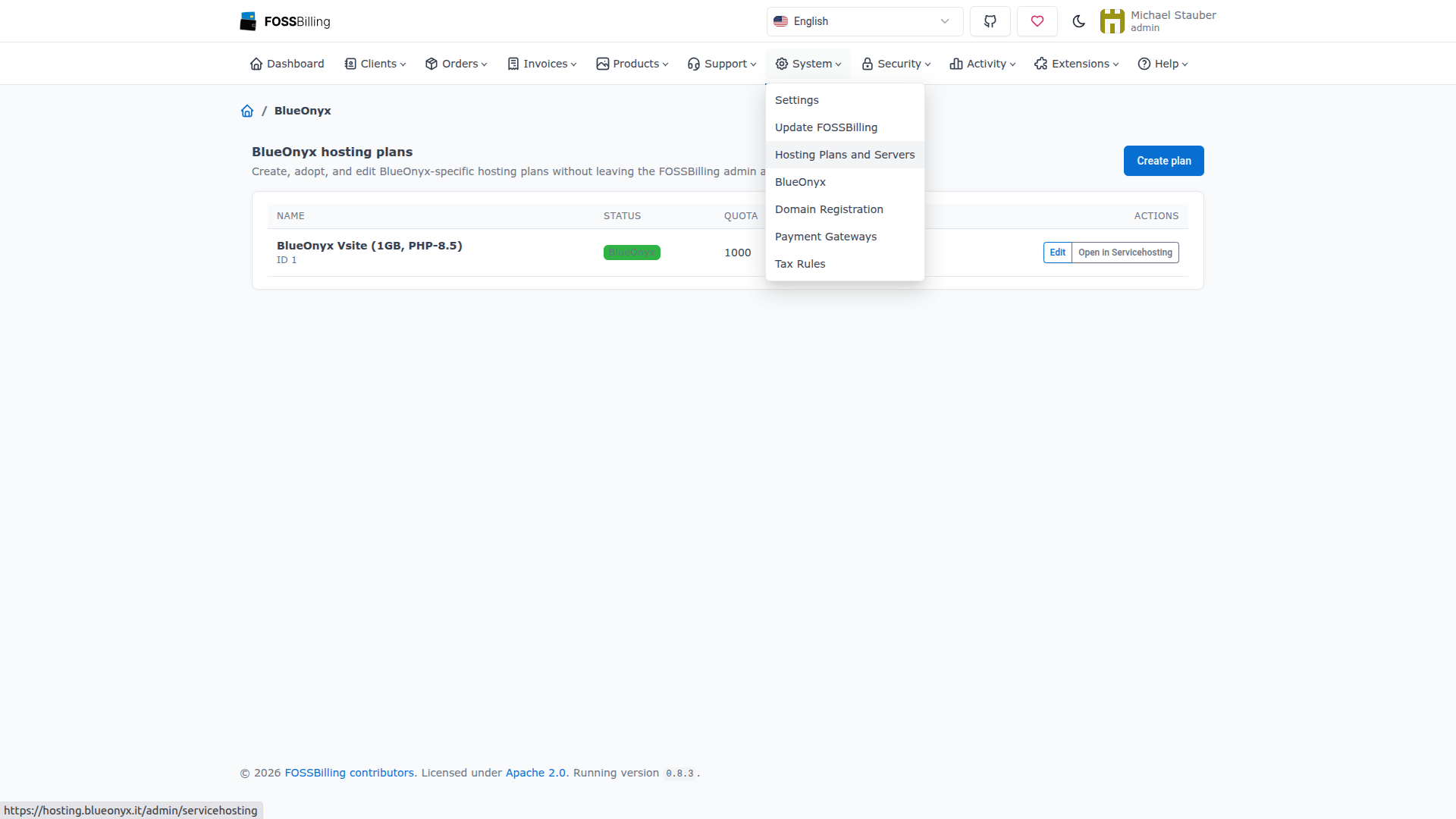
Step 5: Create a hosting product
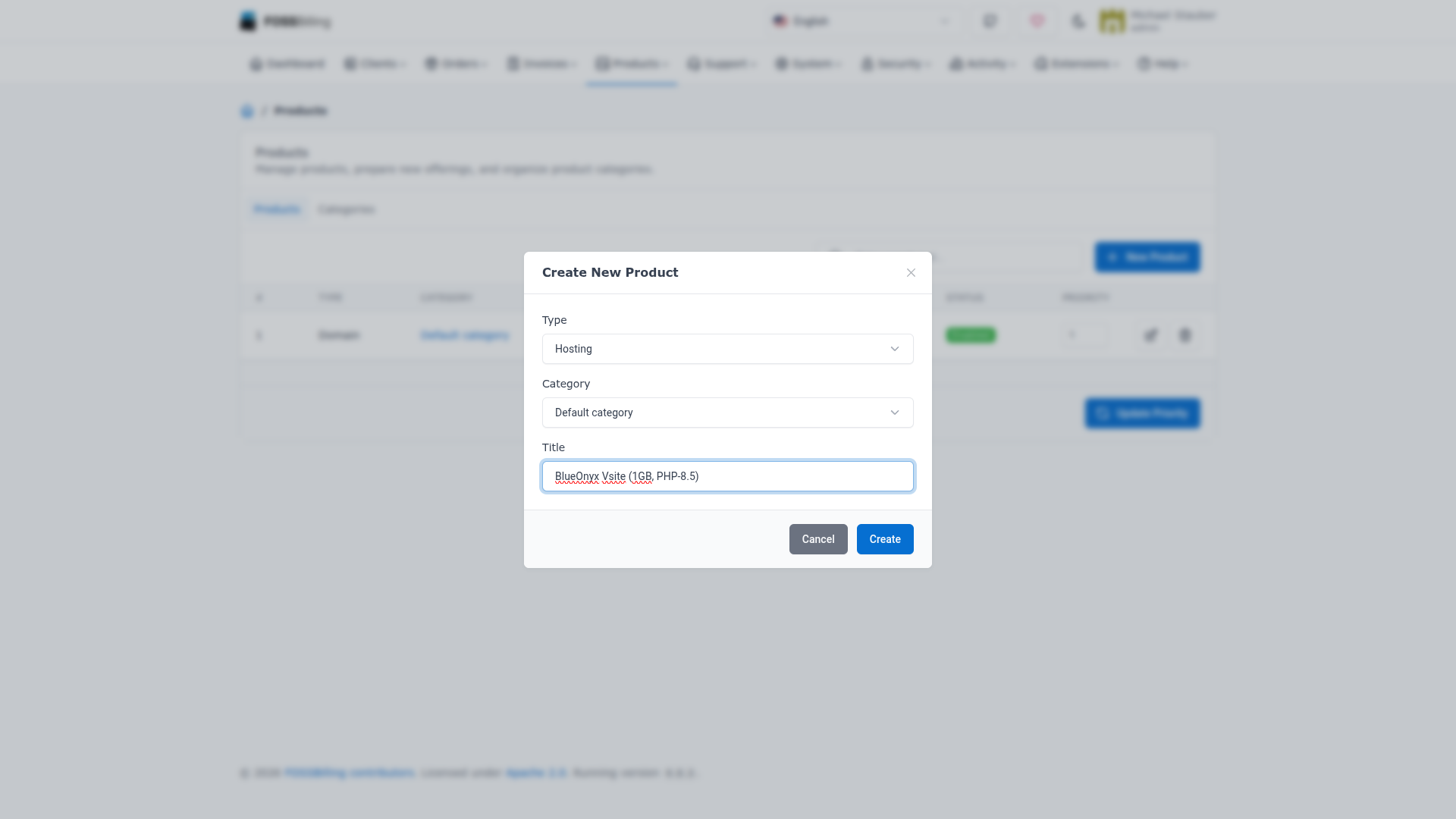
Navigate to Products and click + New Product. Set the type to Hosting, choose a category, and enter a title for the product.
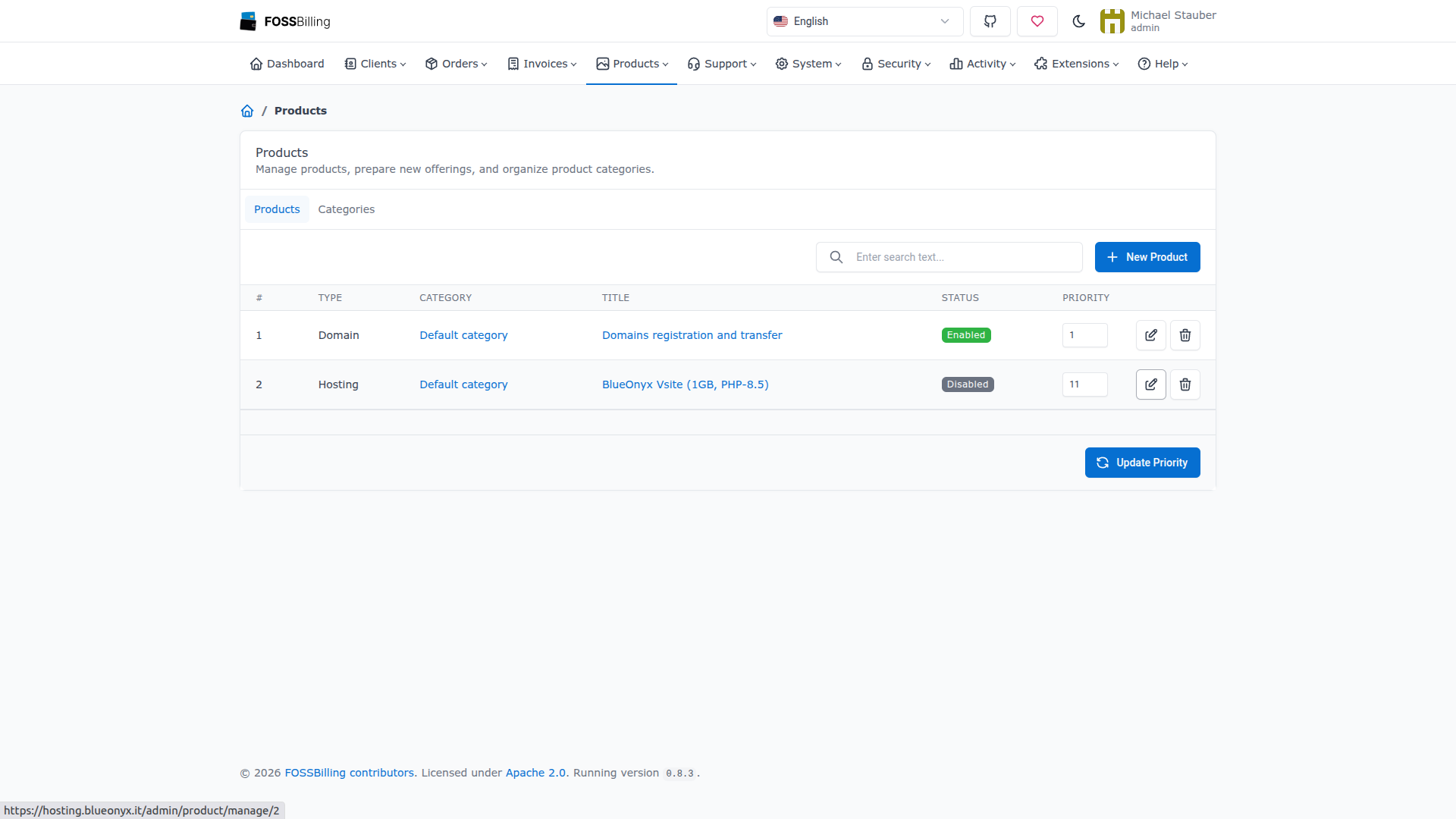
The product appears in the products list. Edit the product to configure its settings.
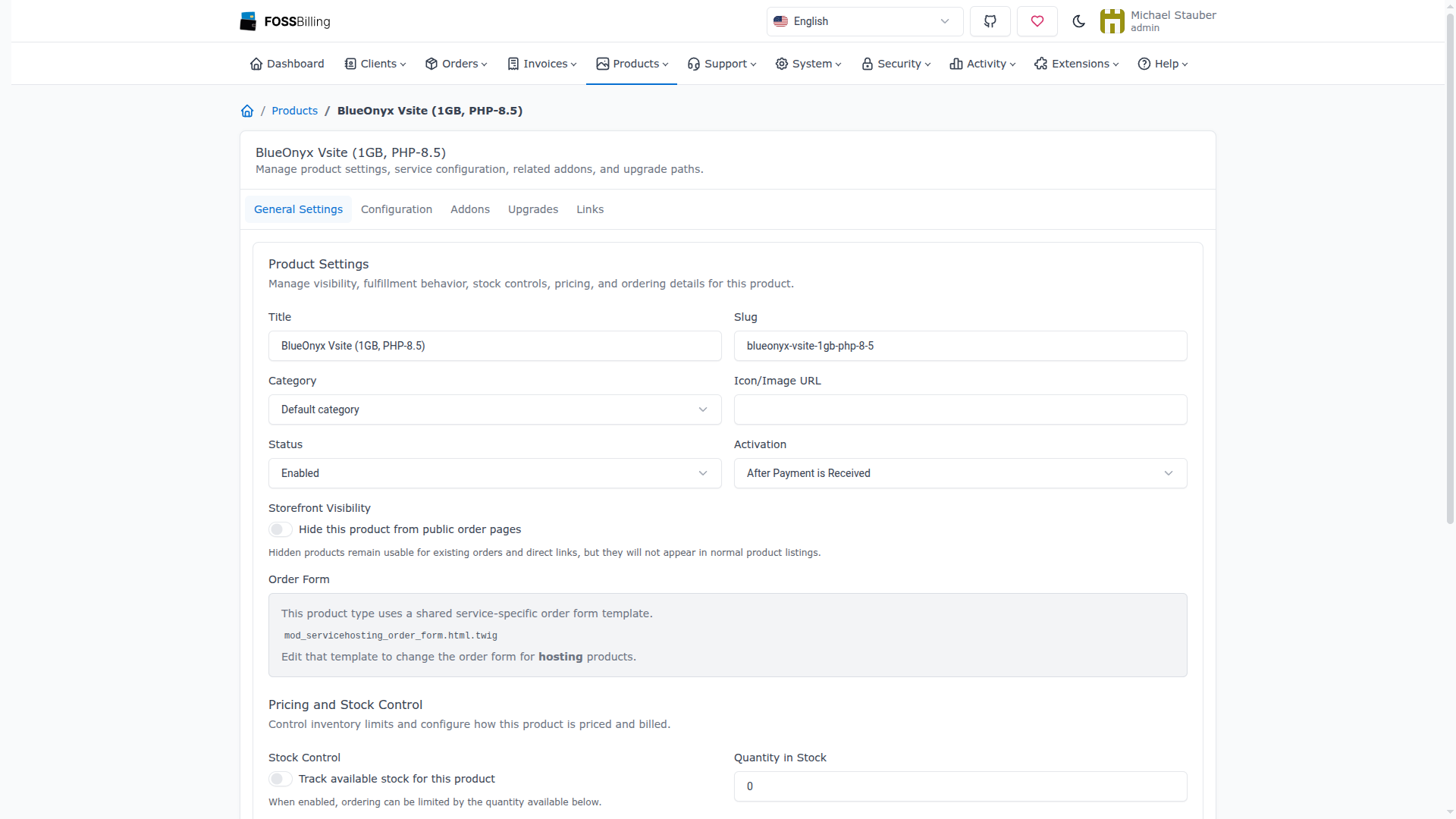
On the General Settings tab, configure the product title, slug, category, status, activation behavior, pricing, and stock control.
On the Configuration tab, assign the BlueOnyx server and hosting plan that this product will use for provisioning. Also configure which domain options are available to customers during ordering (registration, transfer, or using an existing domain).
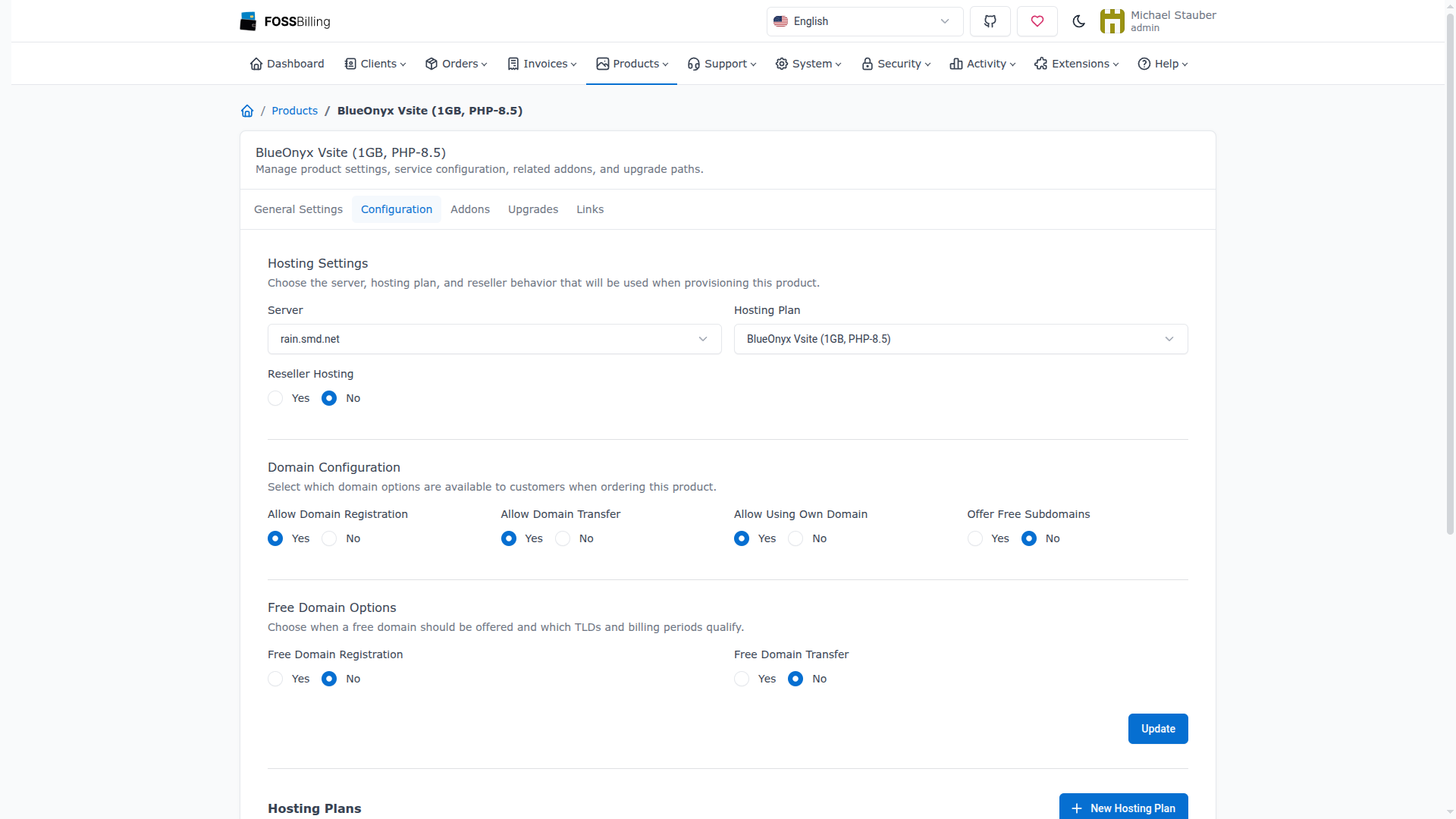
Once the product is enabled and configured, it becomes available for purchase in the FOSSBilling client area.
The customer experience
Customers interact with the BlueOnyx integration through the standard FOSSBilling client area. The module's template overrides ensure that BlueOnyx-specific information and actions are presented in the right places.
Registration and ordering
New customers can register an account through the FOSSBilling client portal.
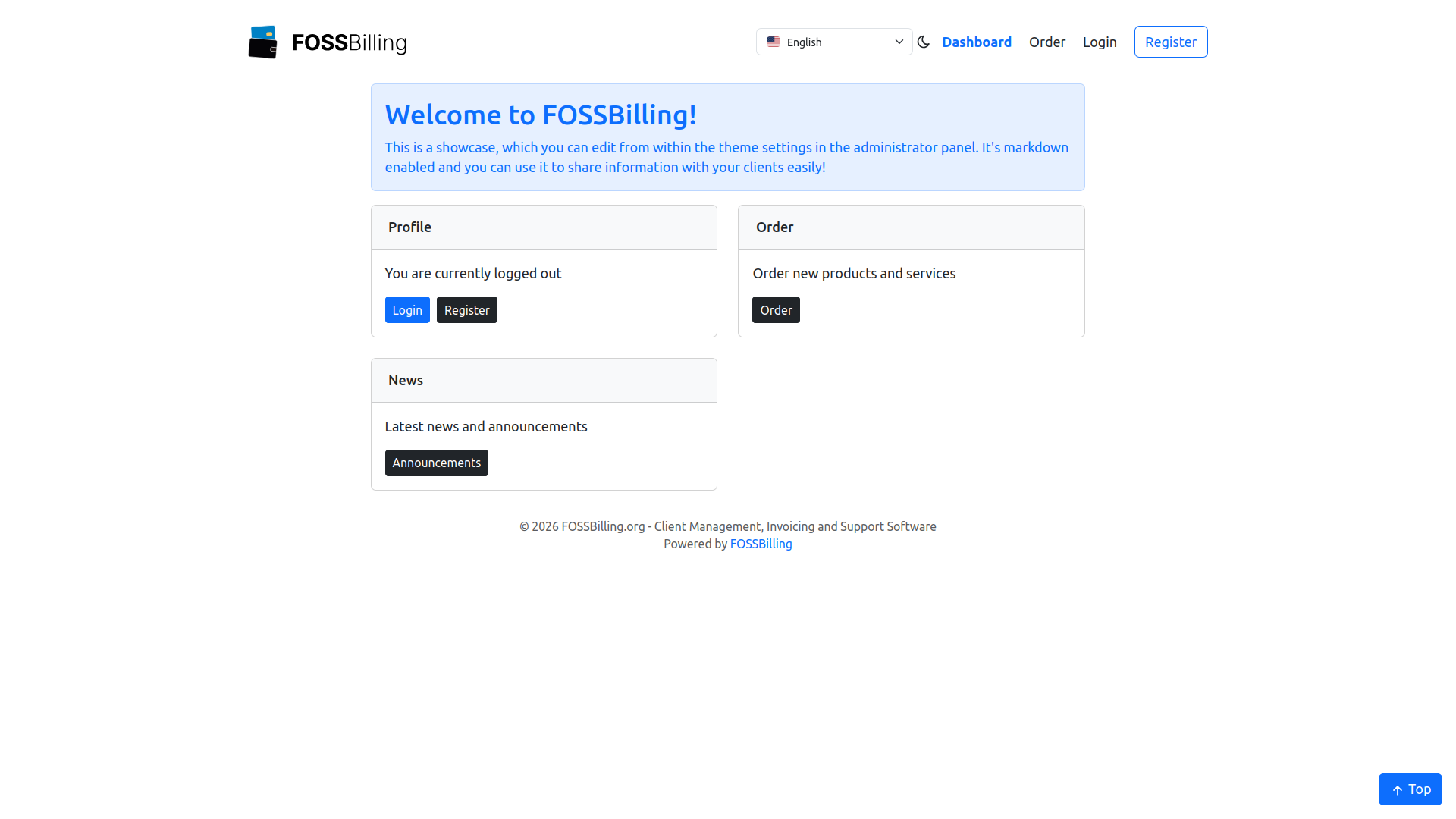
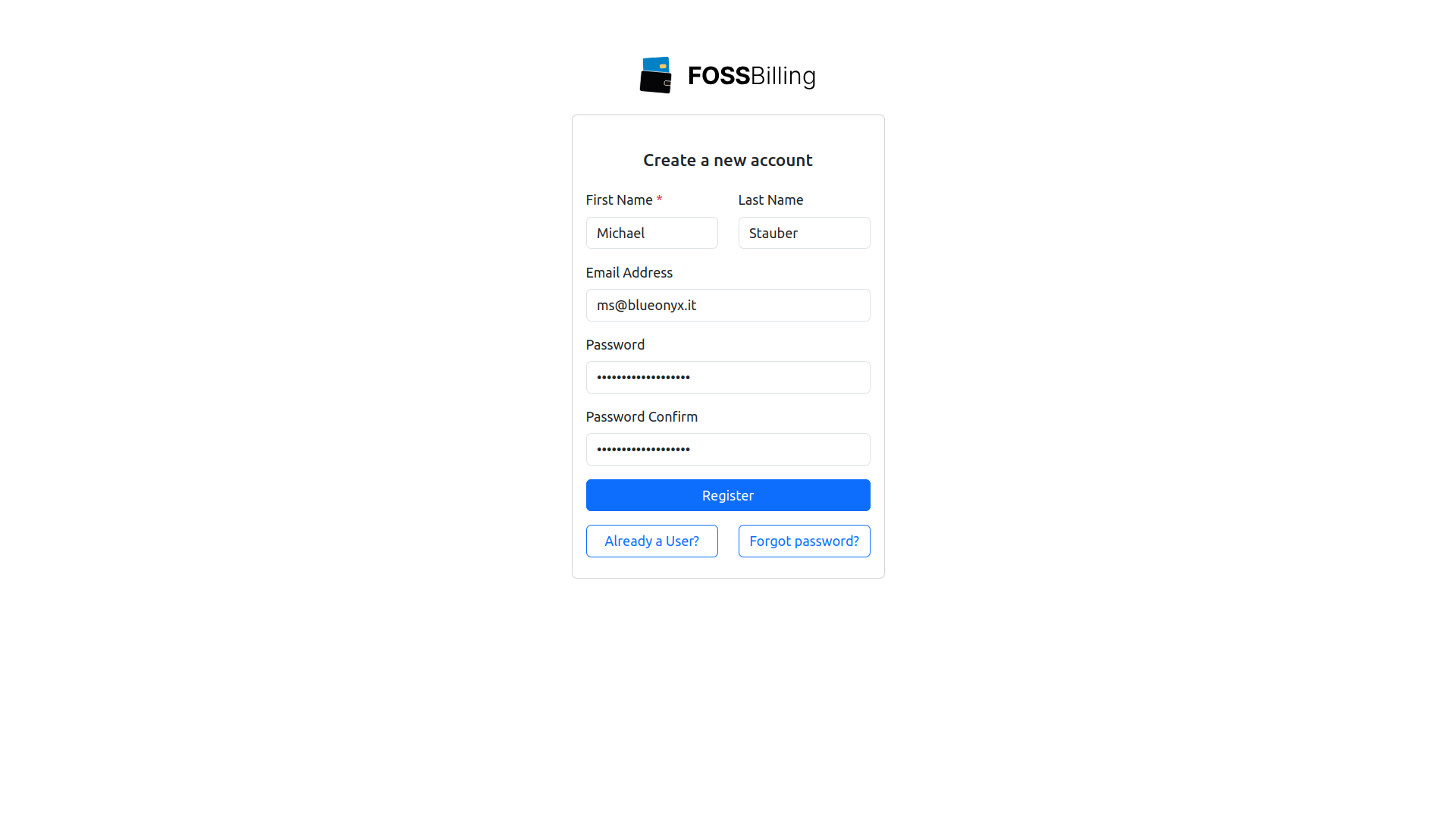
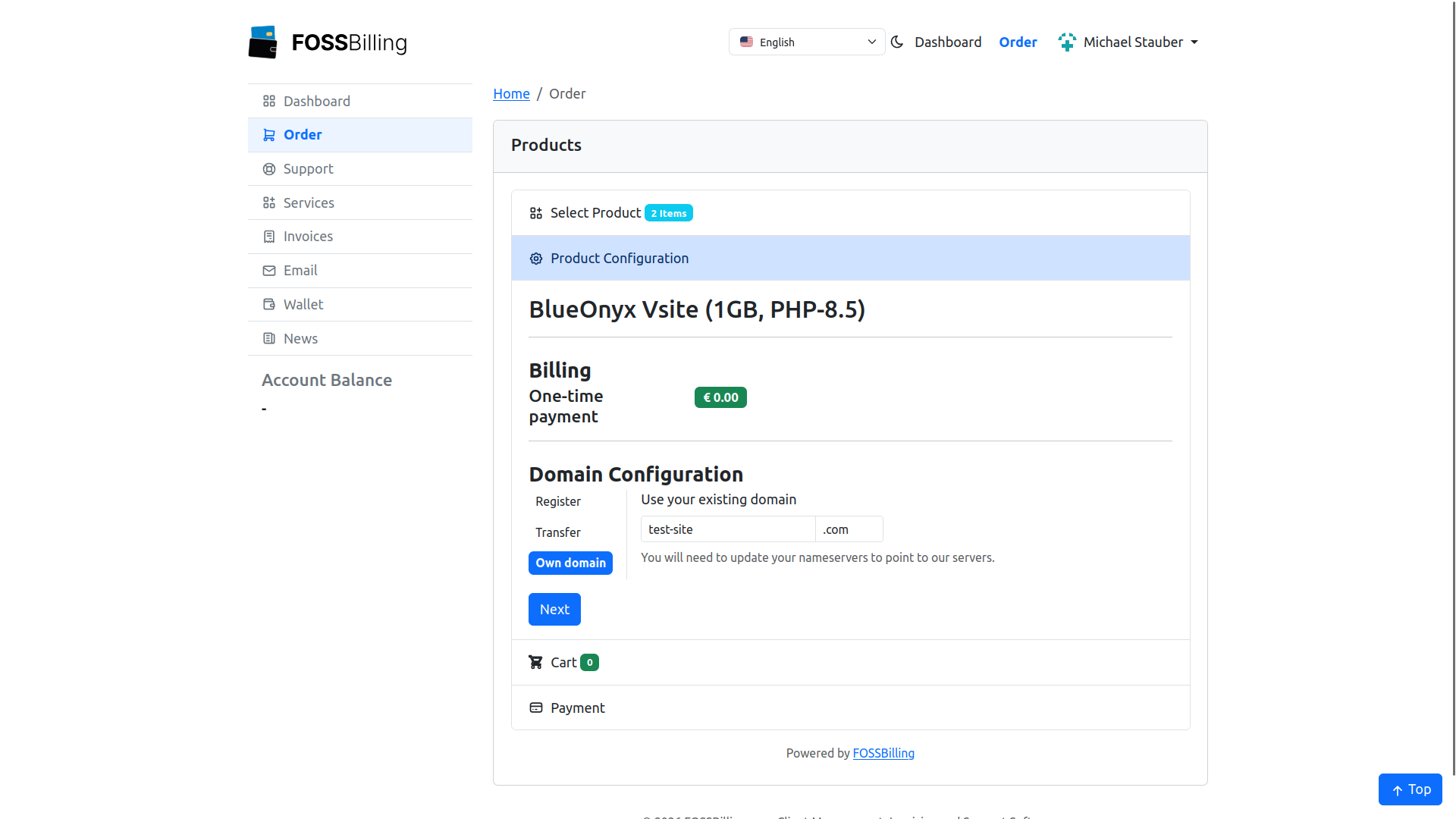
After logging in, the customer can browse available products and place an order. During the order process, the customer selects a domain — either by registering a new one, transferring an existing one, or using a domain they already own.
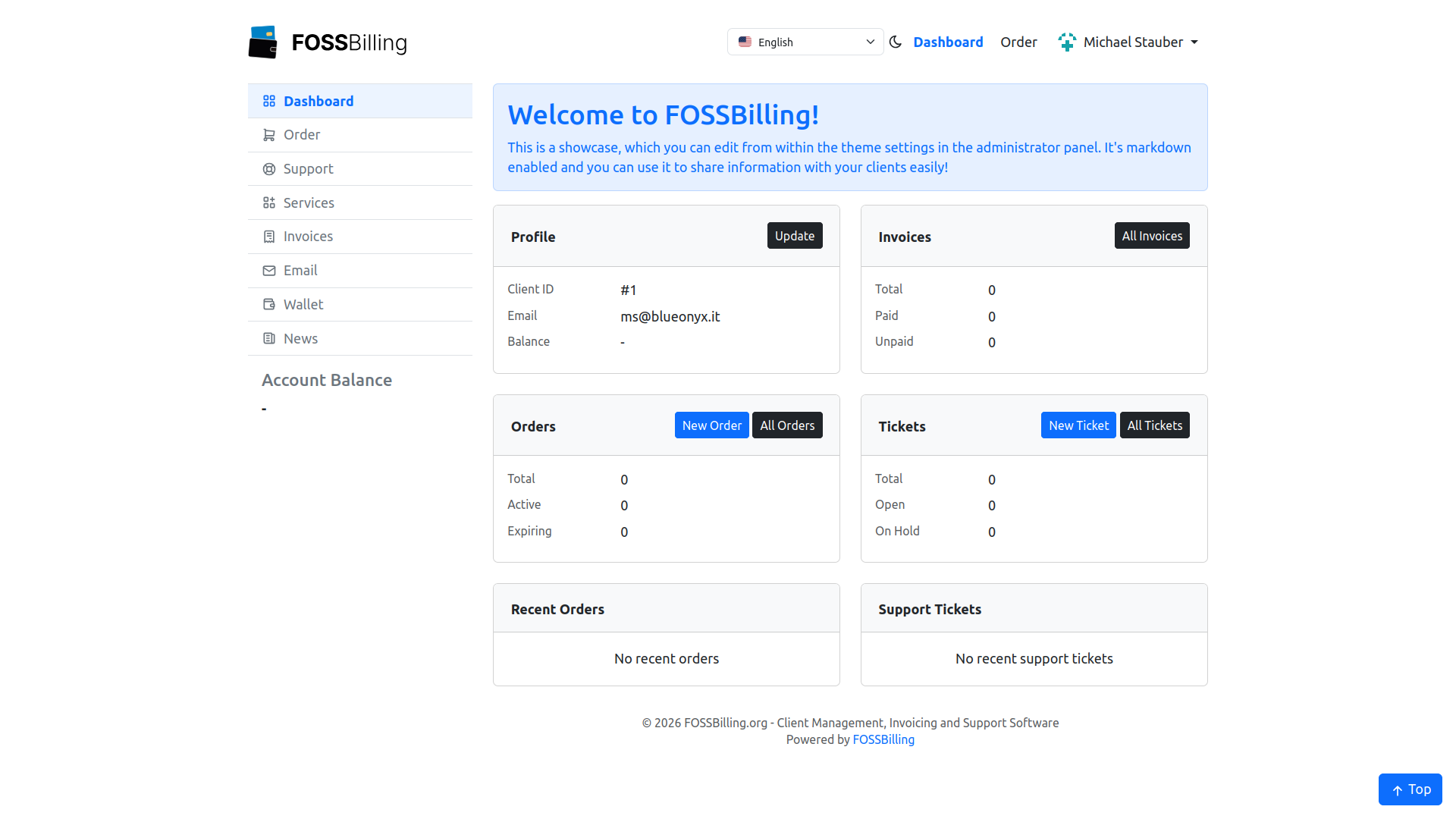
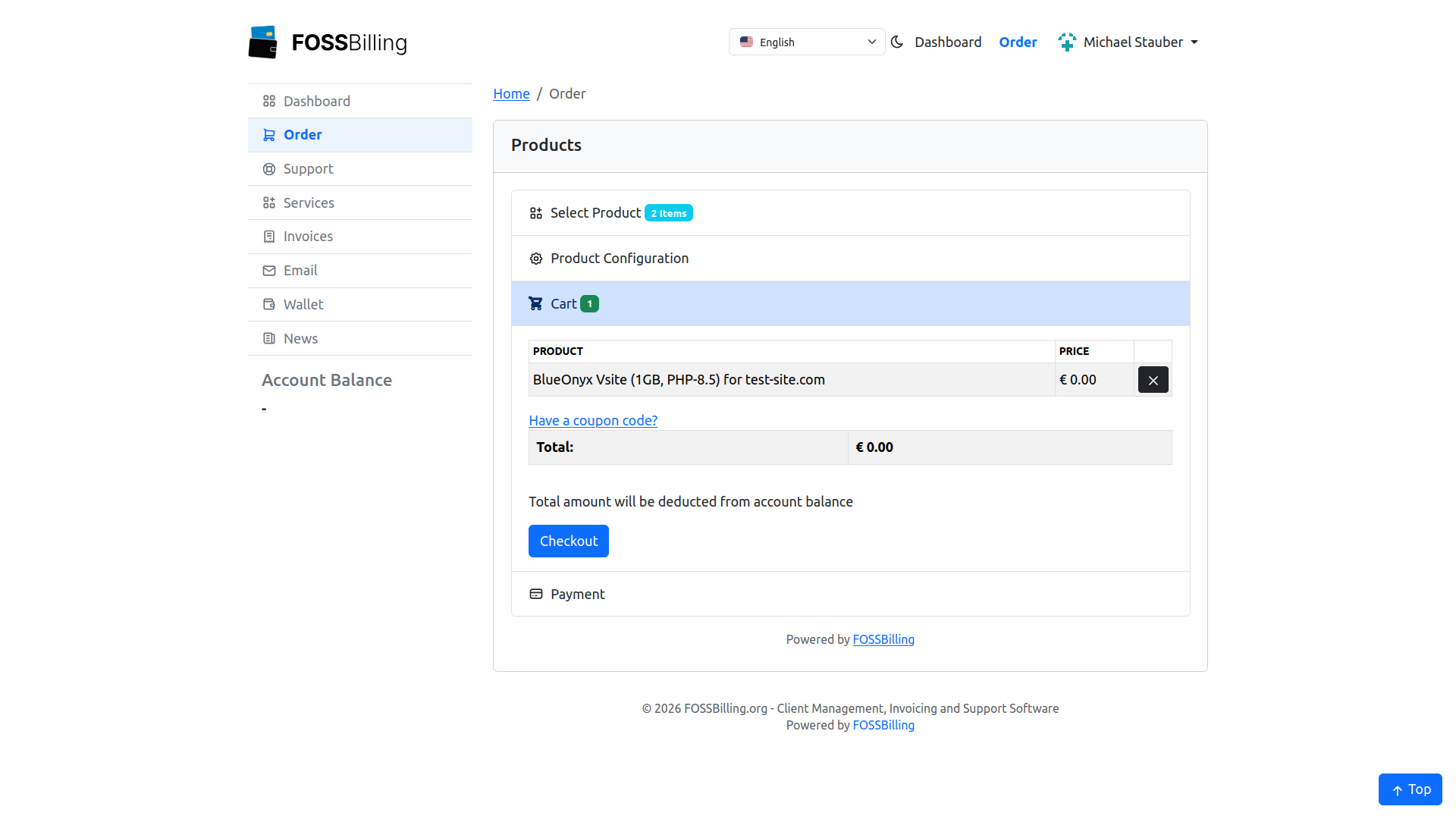
After completing checkout, the order is activated and the BlueOnyx Vsite is provisioned automatically on the assigned server.
Service management
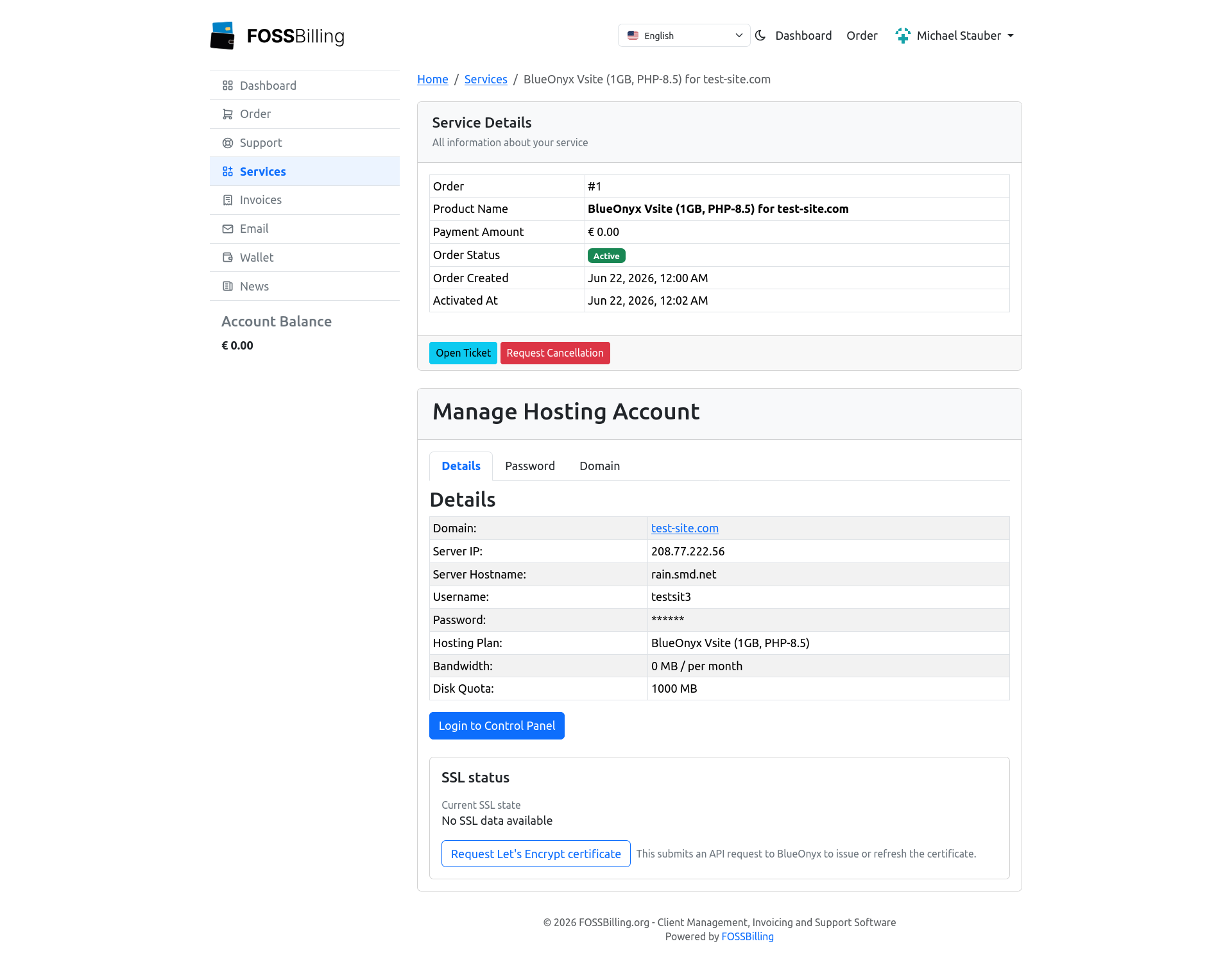
Once the order is active, the customer can view and manage their hosting service under Services. The service details page shows the provisioned domain, server IP, server hostname, username, hosting plan, bandwidth, and disk quota.
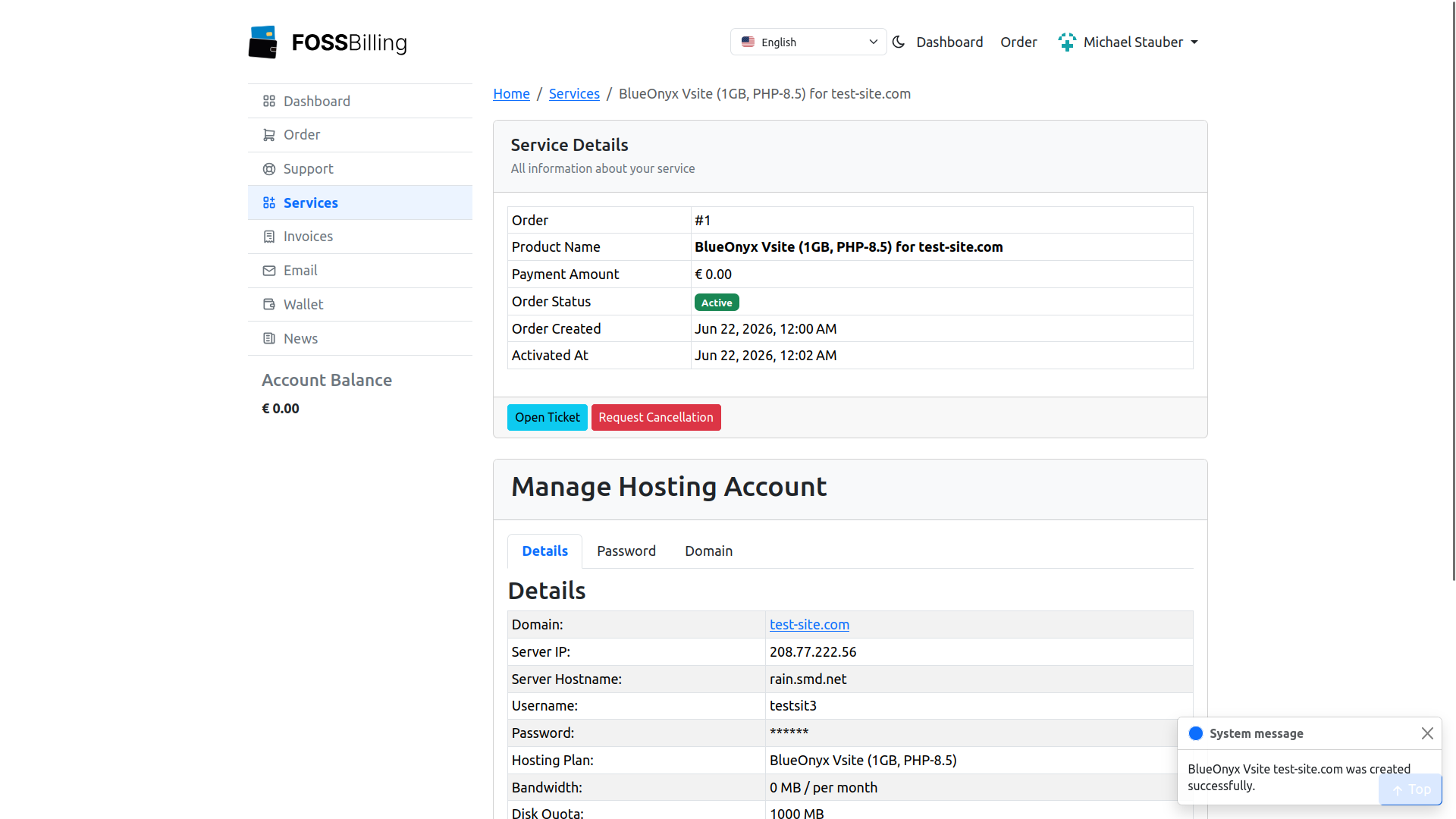
A success notification confirms that the BlueOnyx Vsite was created. The customer can click Login to Control Panel to open the BlueOnyx GUI directly.
SSL and Let's Encrypt
The service page includes an SSL status section that shows the current certificate state and provides a Request Let's Encrypt certificate button. When the customer clicks it, the request is queued and processed during the next FOSSBilling admin cron run. This keeps long-running certificate operations from blocking the browser.
Password and domain changes
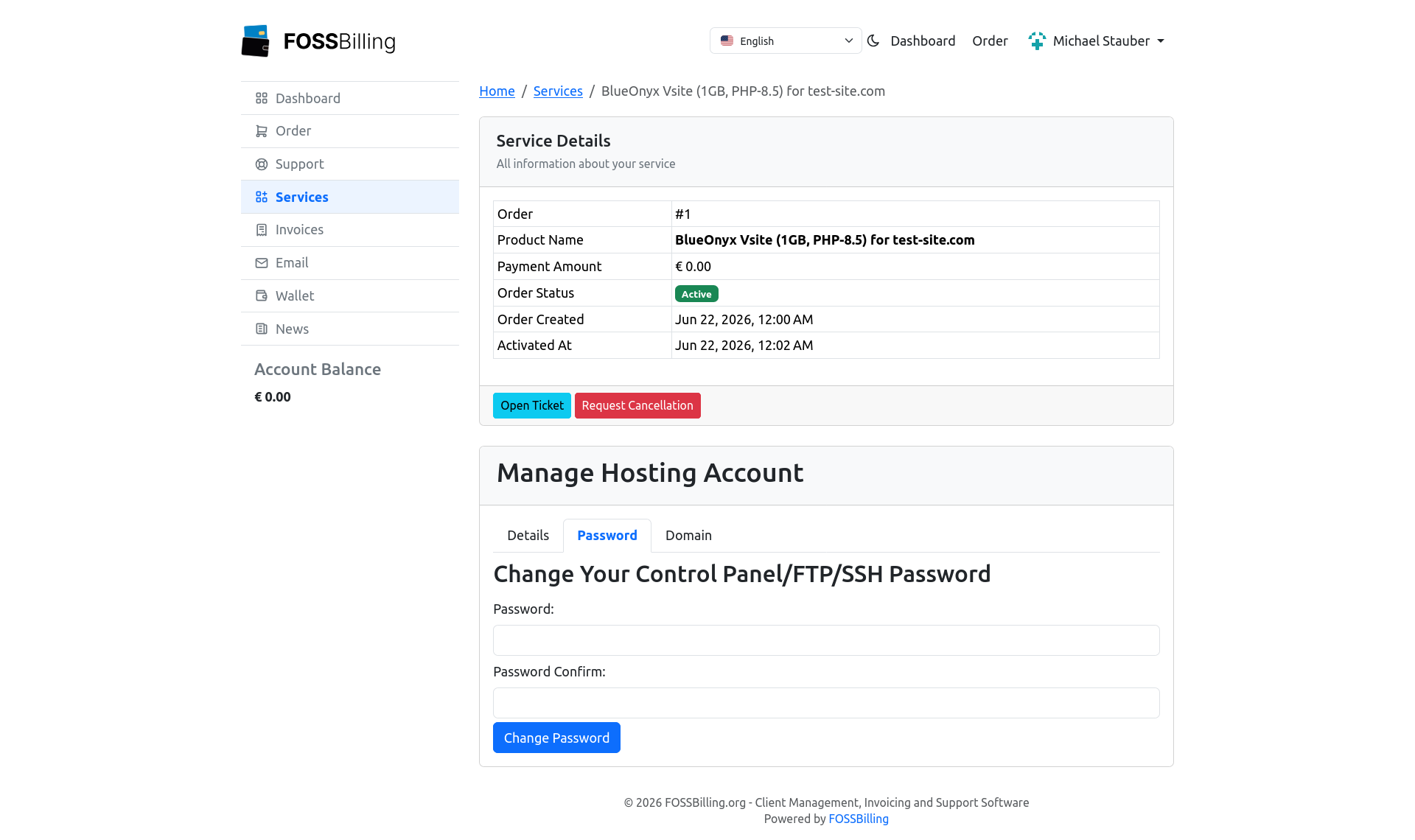
Customers can change their control panel, FTP, and SSH password directly from the service page. The password change is applied to the site administrator account on the BlueOnyx server through the API.
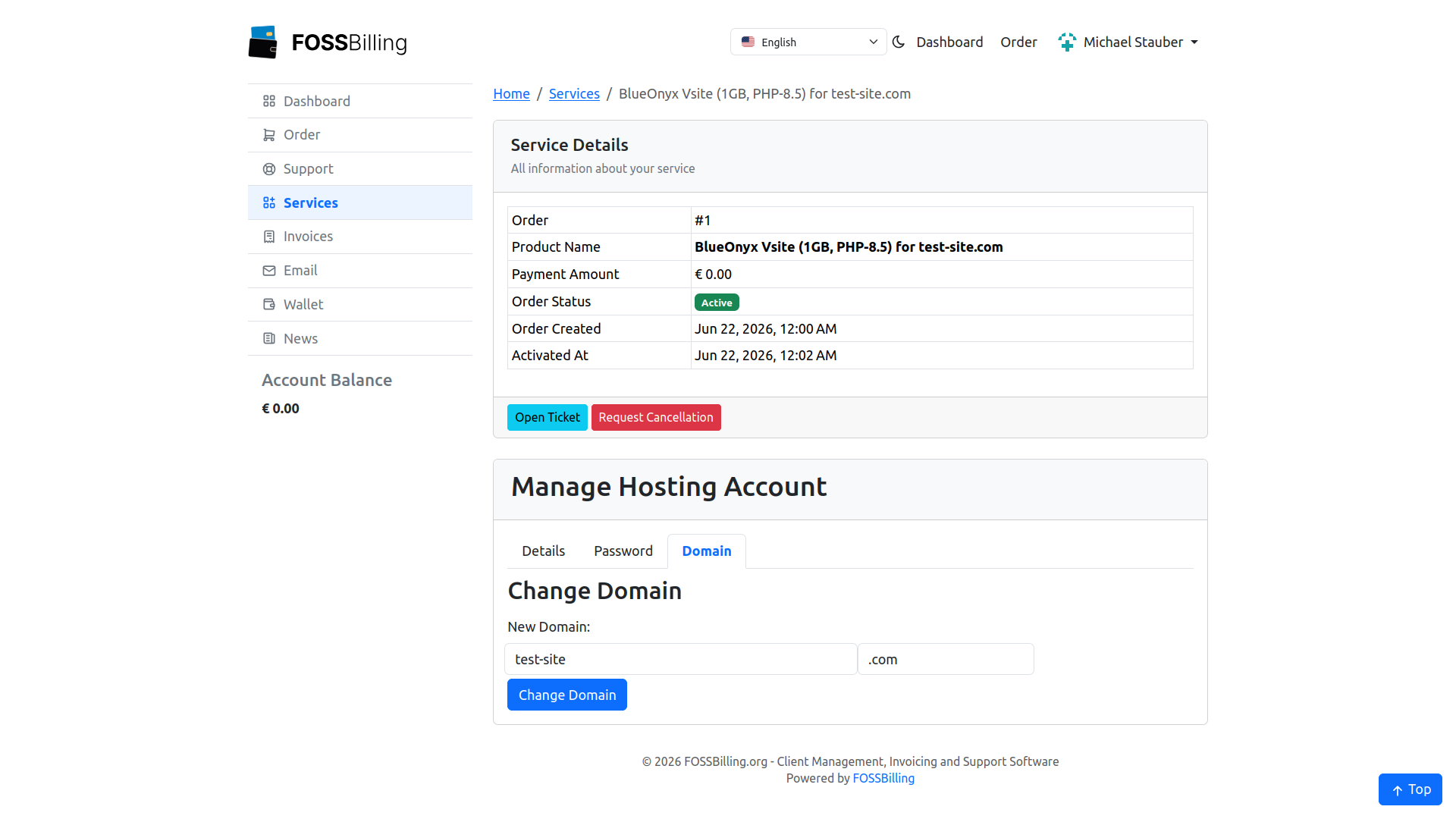
The domain tab allows the customer to change the domain associated with their hosting service. The change is propagated to the BlueOnyx Vsite through the API.
Admin order management
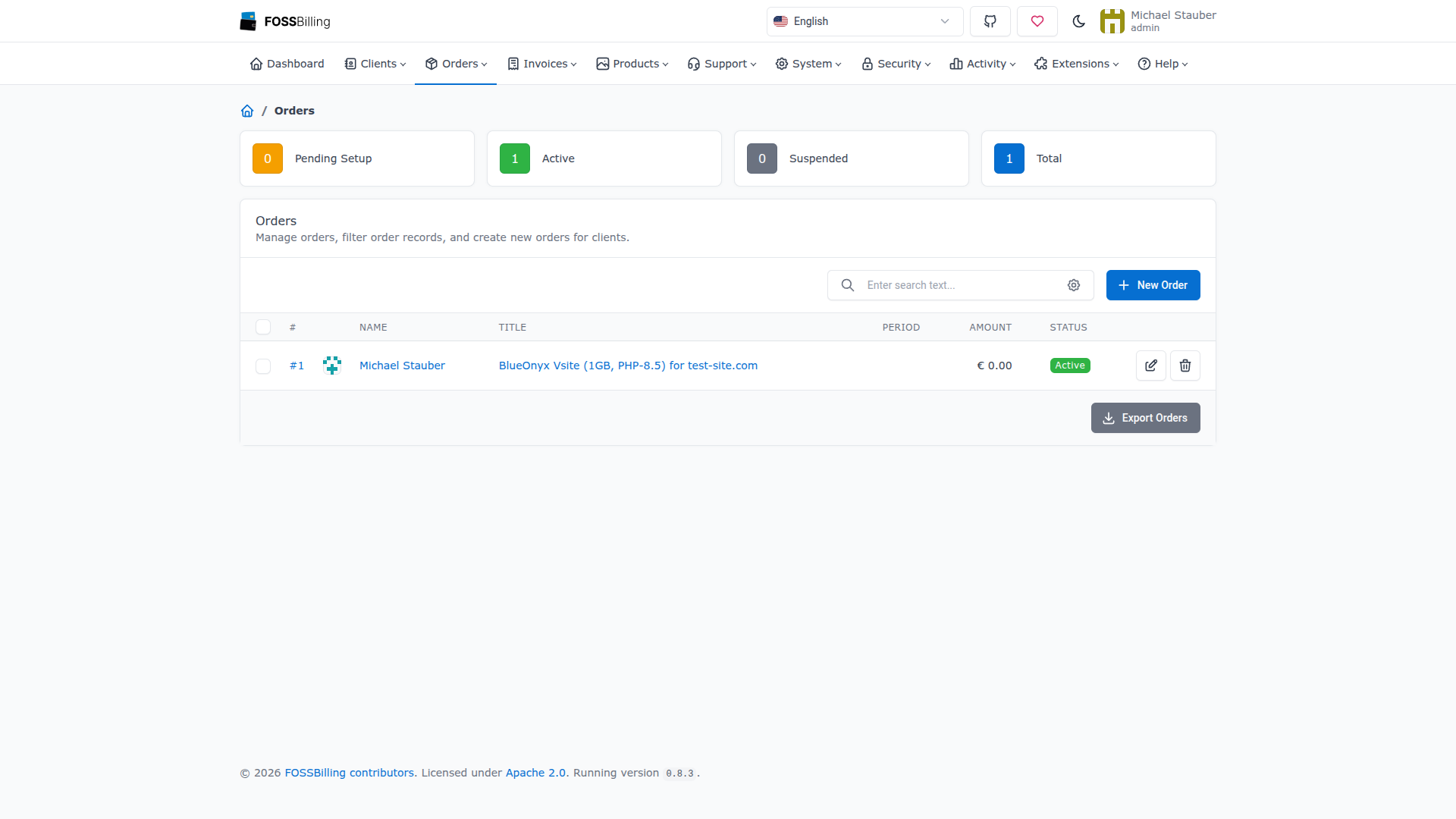
From the admin area, all BlueOnyx orders appear in the standard FOSSBilling Orders list. The module extends the order detail page with BlueOnyx-specific lifecycle actions.
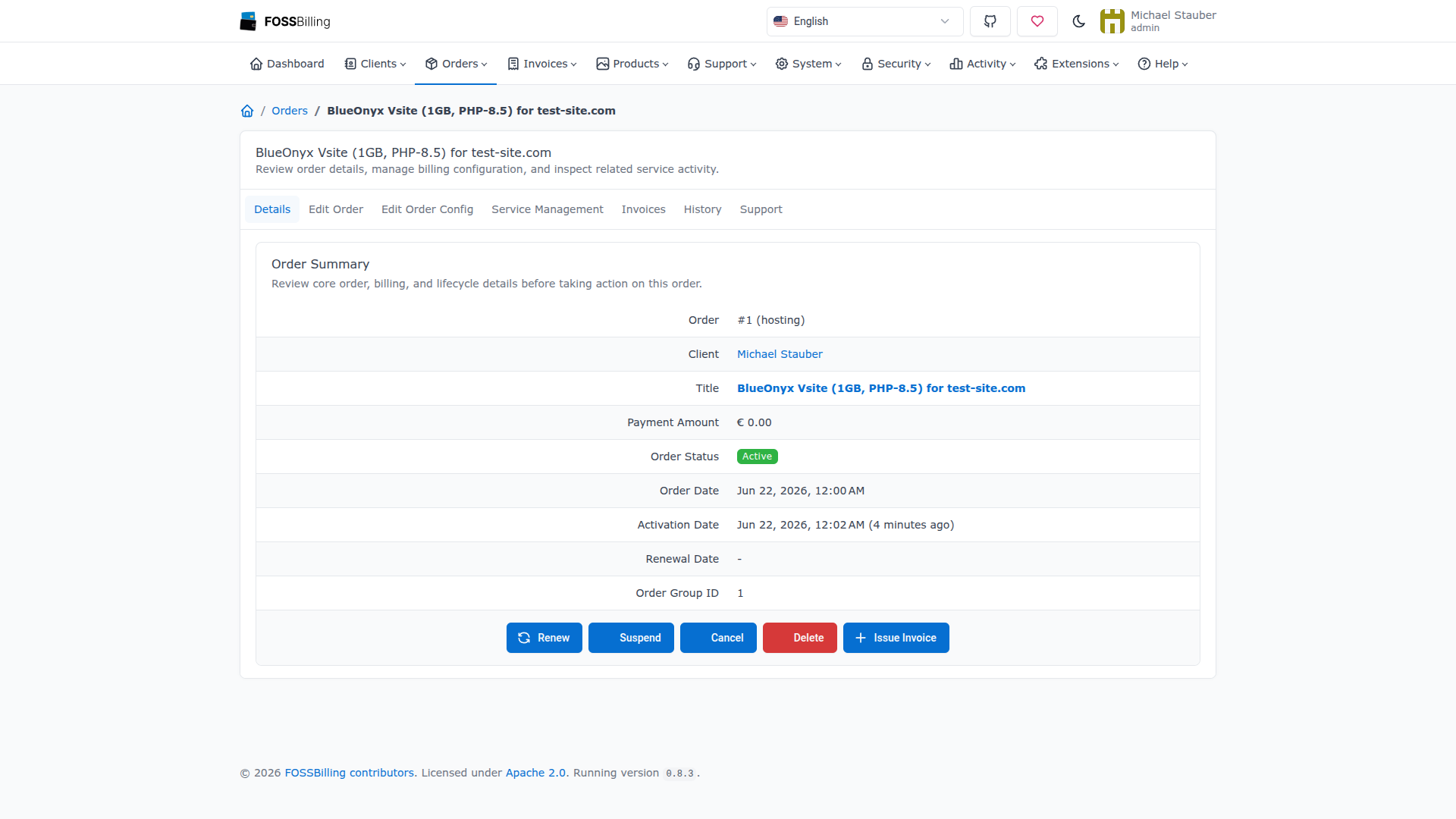
The order detail page provides buttons to renew, suspend, cancel, or delete the order. Each action is propagated to the BlueOnyx server: suspending the order suspends the Vsite, canceling destroys the Vsite and its users, and deleting removes the order entirely from FOSSBilling after cleaning up the Vsite.
Feature summary
- Hosting plan editor: Create BlueOnyx-specific hosting plans with PHP handler and version selection, shell access levels, subdomain limits, MariaDB provisioning, email autoconfiguration, and DNS auto-creation — all from within the FOSSBilling admin area.
- Plan adoption: Existing generic FOSSBilling hosting plans can be adopted as BlueOnyx plans. Plans managed by other server managers are protected from accidental edits.
- Automatic provisioning: When an order is activated, the module creates the Vsite, the site administrator user, disk quotas, shell settings, email aliases, PHP configuration, MariaDB databases, and email autoconfig aliases on the BlueOnyx server. If provisioning fails partway through, the partially created Vsite is automatically rolled back.
- Full lifecycle support: Suspend, unsuspend, cancel, delete, change package, and change password actions are all propagated to the BlueOnyx server through the API.
- Multiple servers: Add as many BlueOnyx servers as needed. Each product can be assigned to a specific server, allowing provisioning across multiple BlueOnyx instances.
- Local and remote API modes: Connect to a BlueOnyx server on the same machine (local mode with password authentication) or over the network (remote mode with client-secret authentication).
- Customer self-service: Customers can view their Vsite details, change their password, change their domain, check SSL status, and request Let's Encrypt certificates — all from the FOSSBilling client area.
- Asynchronous Let's Encrypt: Certificate requests are queued and processed during the FOSSBilling admin cron run, preventing browser timeouts.
- Template overrides: The module deploys its own template overrides into
html_customon installation and removes them on uninstallation. No FOSSBilling core files are modified. - Security: API credentials are redacted in debug output and error messages. TLS verification can be toggled per server. The BlueOnyx API supports IP-based access restrictions and client-secret authentication for remote connections.
Uninstallation
To remove the module, deactivate it in the FOSSBilling Extensions page. The module uninstall hook removes the BlueOnyx-specific html_custom template overrides. Existing hosting plans, services, and orders are not affected — they remain in FOSSBilling and on the BlueOnyx servers.
Repository and support
- Module repository: GitHub — fossbilling-blueonyx-server-module
- BlueOnyx project: https://www.blueonyx.it
- BlueOnyx main SVN repository: BlueOnyx SVN
- BlueOnyx GitHub repository: GitHub — BlueOnyx 5212R
- BlueOnyx APIv2 documentation: https://www.blueonyx.it/api-v2-documentation
Issues and pull requests related to the module belong in the module repository. BlueOnyx core changes belong in the BlueOnyx repository.