
Two-Factor-Auth (2FA)
Two-Factor-Auth (2FA) is available on BlueOnyx and can add as additional protection layer to SSH logins as well as for GUI logins.
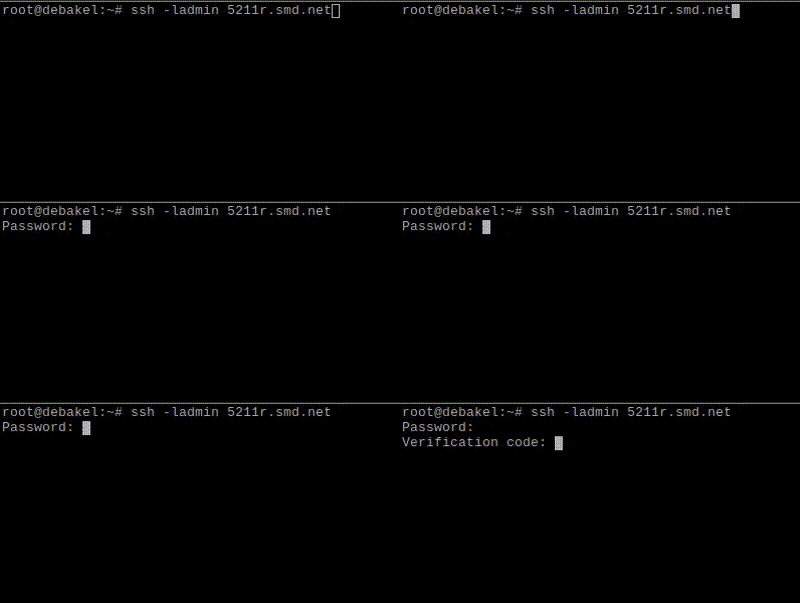
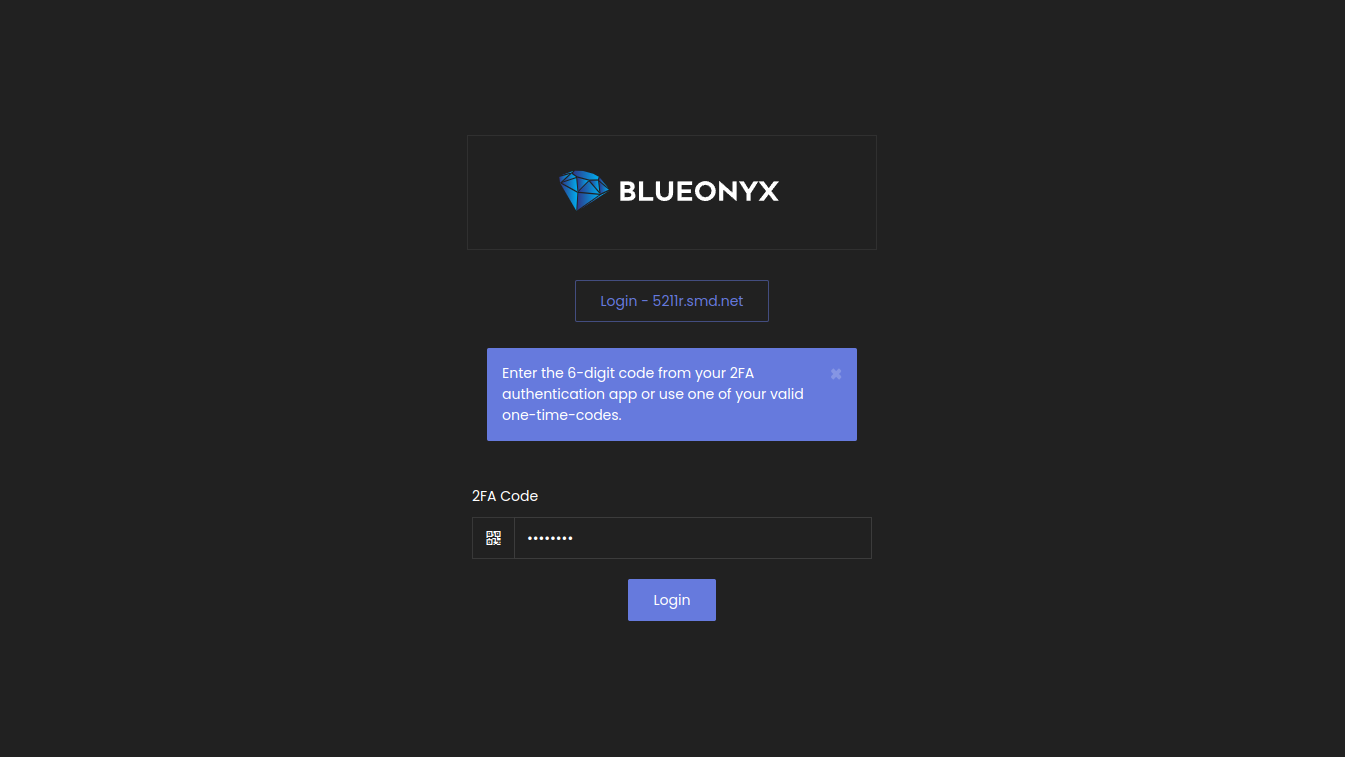
Our implementation of 2FA adds an additional layer of security to SSH enabled Shell accounts (and the GUI - on 5211R/5212R). If an account has 2FA enabled, then during login the user will be asked for the username, the password and additionally a one-time-use "Verification Code" that you can generate in a 2FA application on your mobile device. Supported 2FA authenticator applications are the Google Authenticator and the RedHat FreeOTP app, which are both available for Android and Apple devices. Download links for these apps are below.
2FA for SSH:
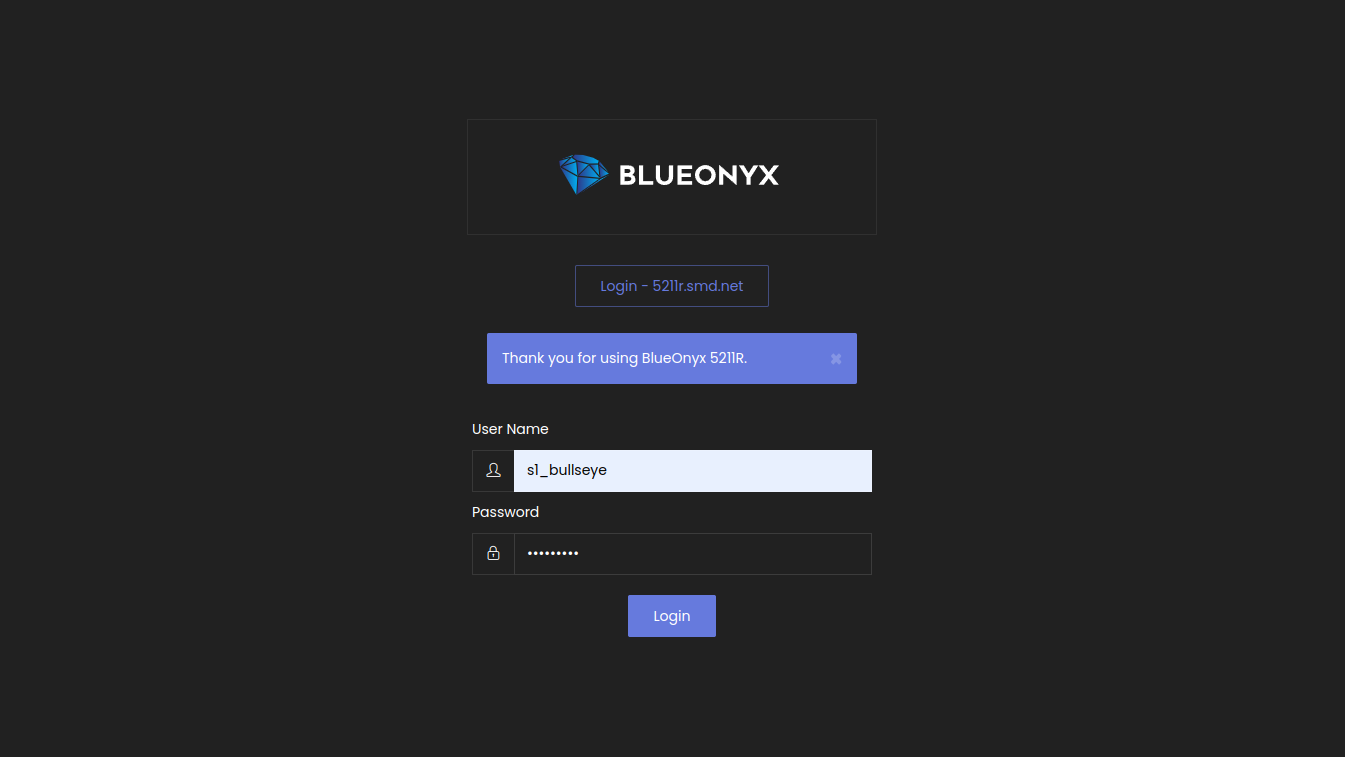
2FA for GUI logins:
|
|
 |
Authenticator usage:
- Download the Google Authenticator or the RedHat FreeOTP Authenticator app from the Apple App Store or Google Play Store.
- Open the app and tap the "+" button to add a new account.
- Select "Scan barcode" and on the BlueOnyx GUI page "Personal Profile" / "SSH Access" scan the QR code "2FA QR-image" or enter the "Authentication Key" manually.
- When logging in to the BlueOnyx server via SSH enter your username and password as well as the verification code generated by the Authenticator app.
- To ensure the security of your account, do not share your key or one-time codes with anyone.
Authenticator App Download Links:
|
Google Authenticator: |
RedHat FreeOTP Authenticator: |
|
 |
|
|
 |
|
GUI Integration in BlueOnyx (for SSH)
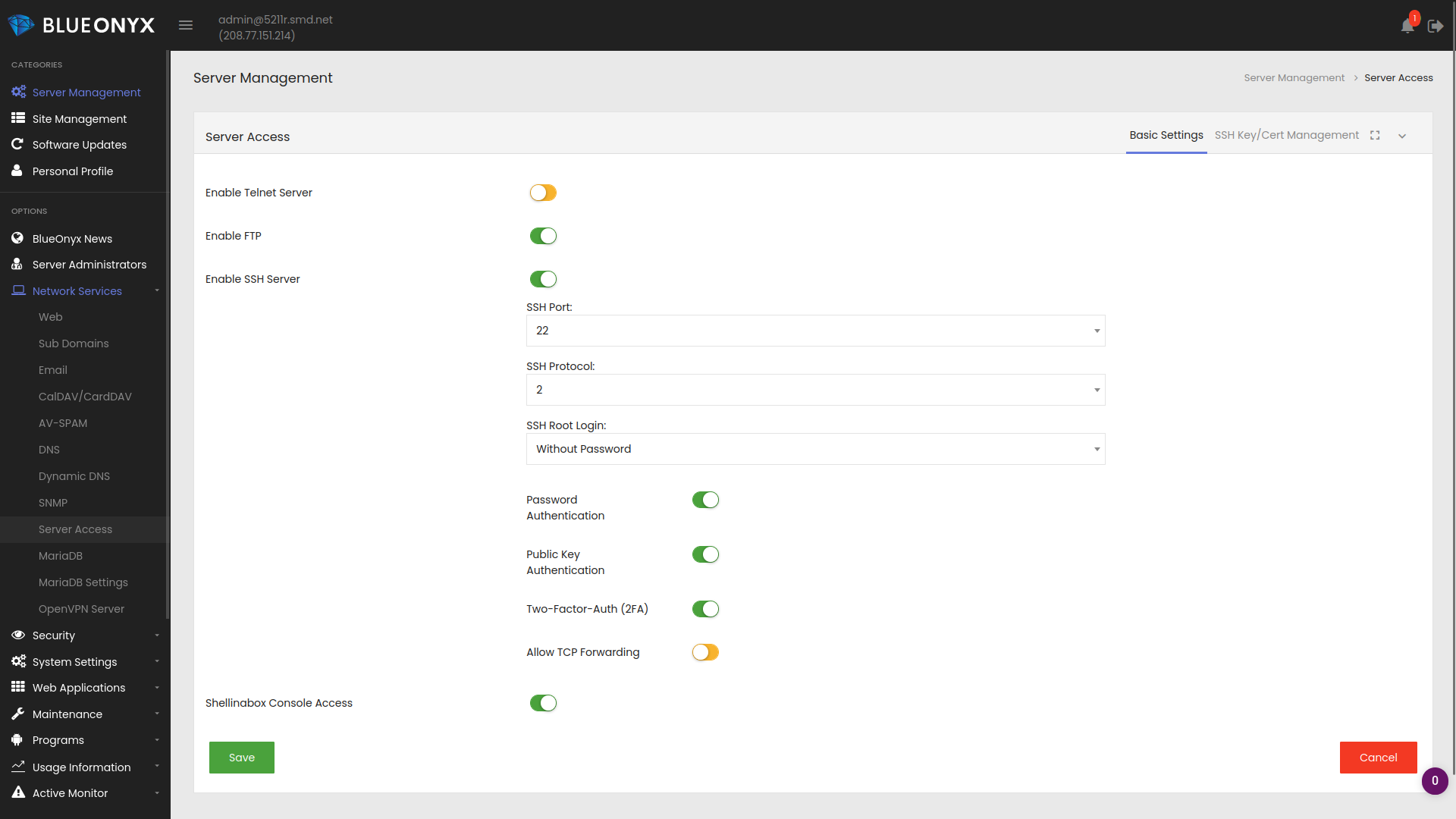
The server administrator needs to enable "Two-Factor-Auth (2FA)" under "Server Management" / "Network Services" / "Server Access". Please note that you may turn off "Password Authentication" and leave "Public Key Authentication" ticked. The way our 2FA integration works is this:
If a user has SSH keys exchanged, he can still login without password AND without 2FA. We consider exchanged SSH keys secure enough.
If a user doesn't have SSH keys exchanged, but has Shell access and has 2FA enabled? Regardless if "Password Authentication" is on or off: He will receive a username and password prompt and also the prompt to enter his 2FA key generated in the 2FA authenticator app.
If a user has Shell, 2FA is disabled for him and SSH is configured without "Password Authentication"? In that case login is only possible via exchanged SSH keys.
This way key exchange still works as before and 2FA can be used if a user doesn't have SSH keys exchanged yet.
2FA as requirement for GUI Logins
Additionally the server administrator can configure the server so that certain users or all users are required to use 2FA for GUI logins. This can be done under "Server Management" / "Security" / "2FA":
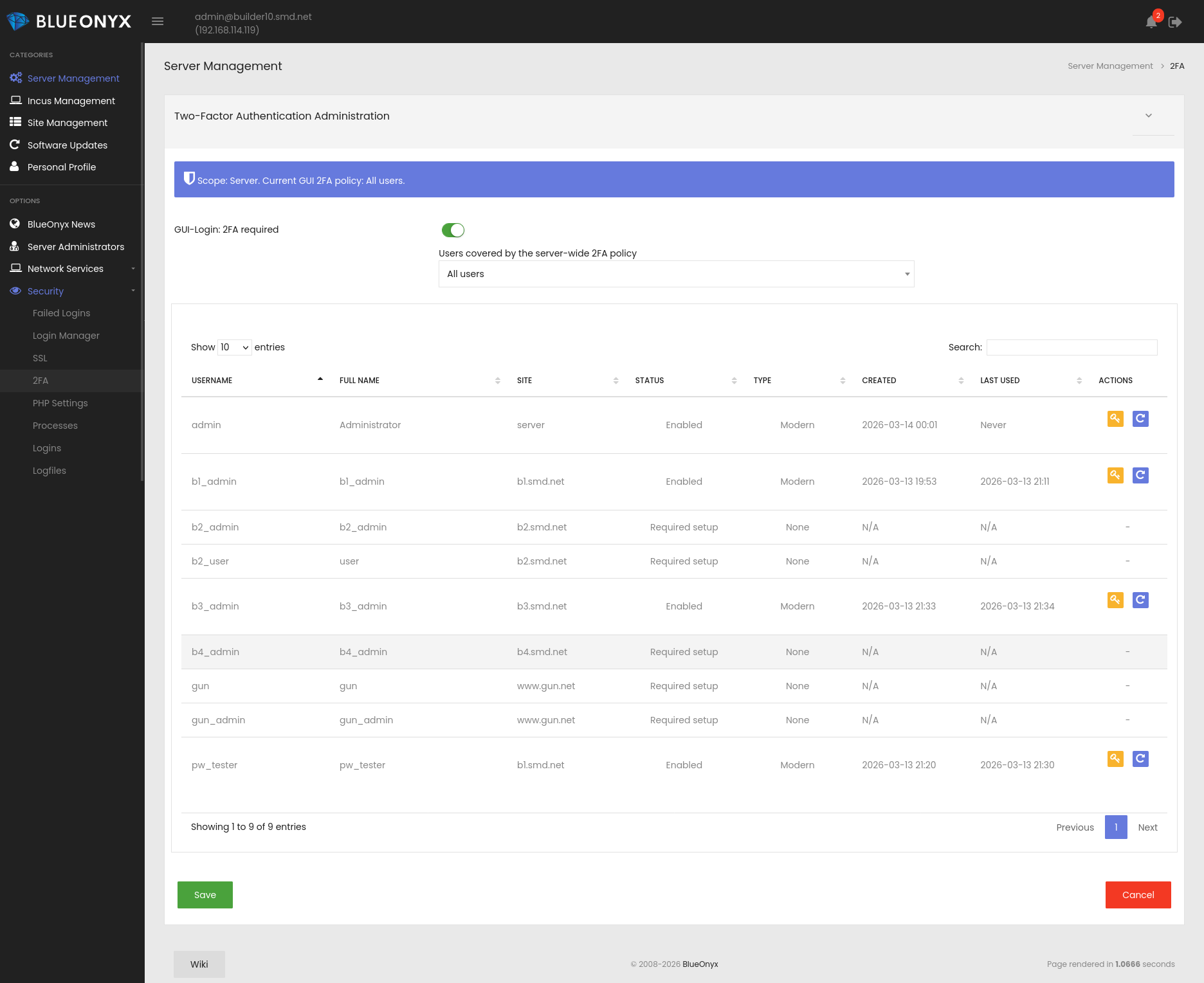
When "GUI-Login: 2FA required" is enabled, it can be set to one of the following three options:
- All users
- Server administrators only
- Server and site administrators only
This page also shows a list of all Users, if they are required to have 2FA, if it is enabled, when their 2FA setup was done and when their last login with 2FA to the GUI took place. You can also regenrate their backup codes or reset their existing 2FA setup.
2FA Vsite integration
Each Vsite can have 2FA enabled or disabled for its users as shown below.
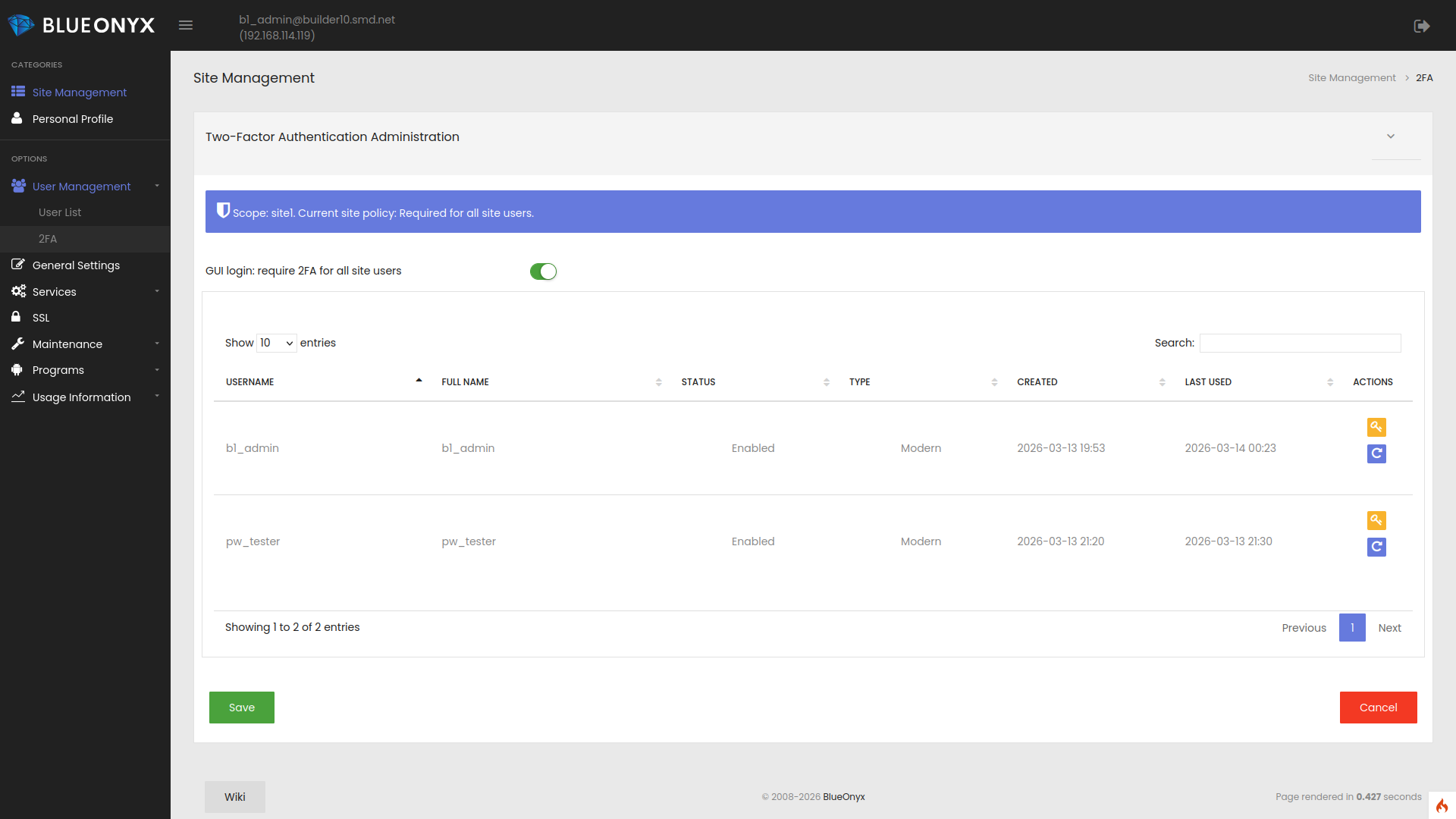
The server wide policy for 2FA GUI logins applies to all users of this Vsite. If the server wide 2FA policy is "All users", then all users (without exception) of such a Vsite are required to use 2FA. SiteAdmins can also use this page to regenrate backup codes or reset the existing 2FA setup of users under their management.
2FA Credentials for Users
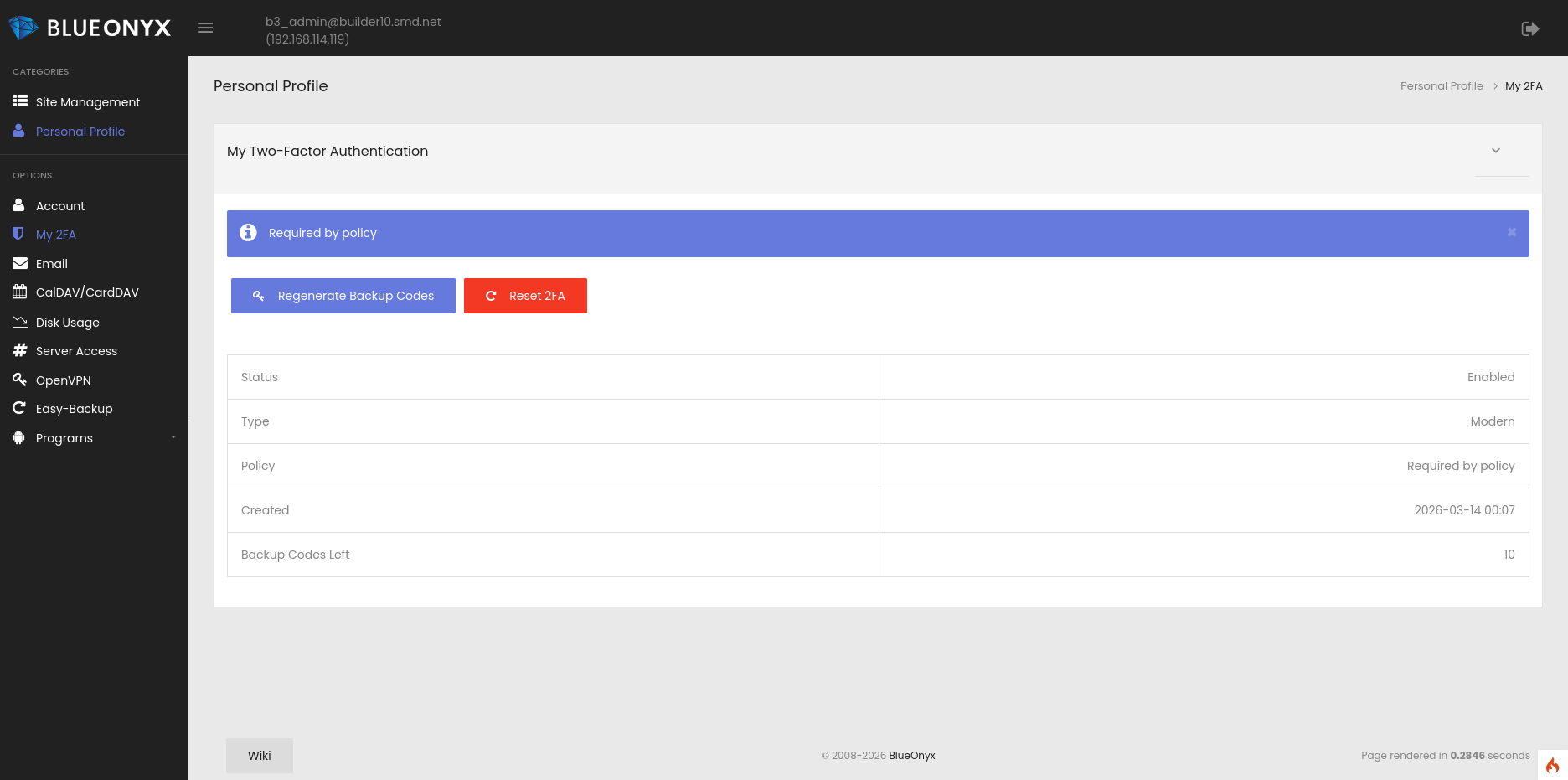
Each user can view his 2FA credentials in the GUI under "Personal Profile" / "My 2FA":
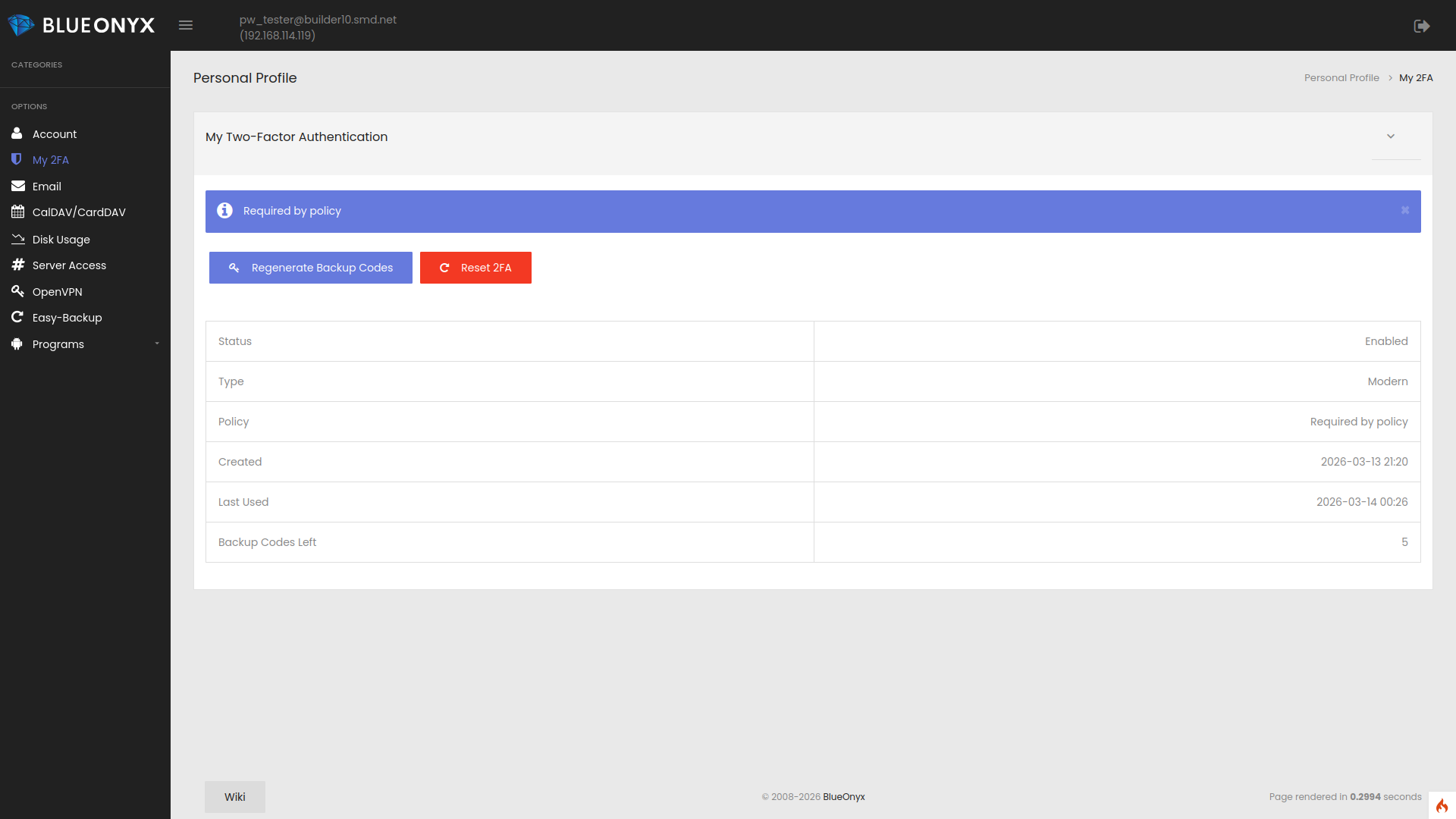
The above image shows an already configured 2FA setup.
First time 2FA setup for Users of all privilege levels:
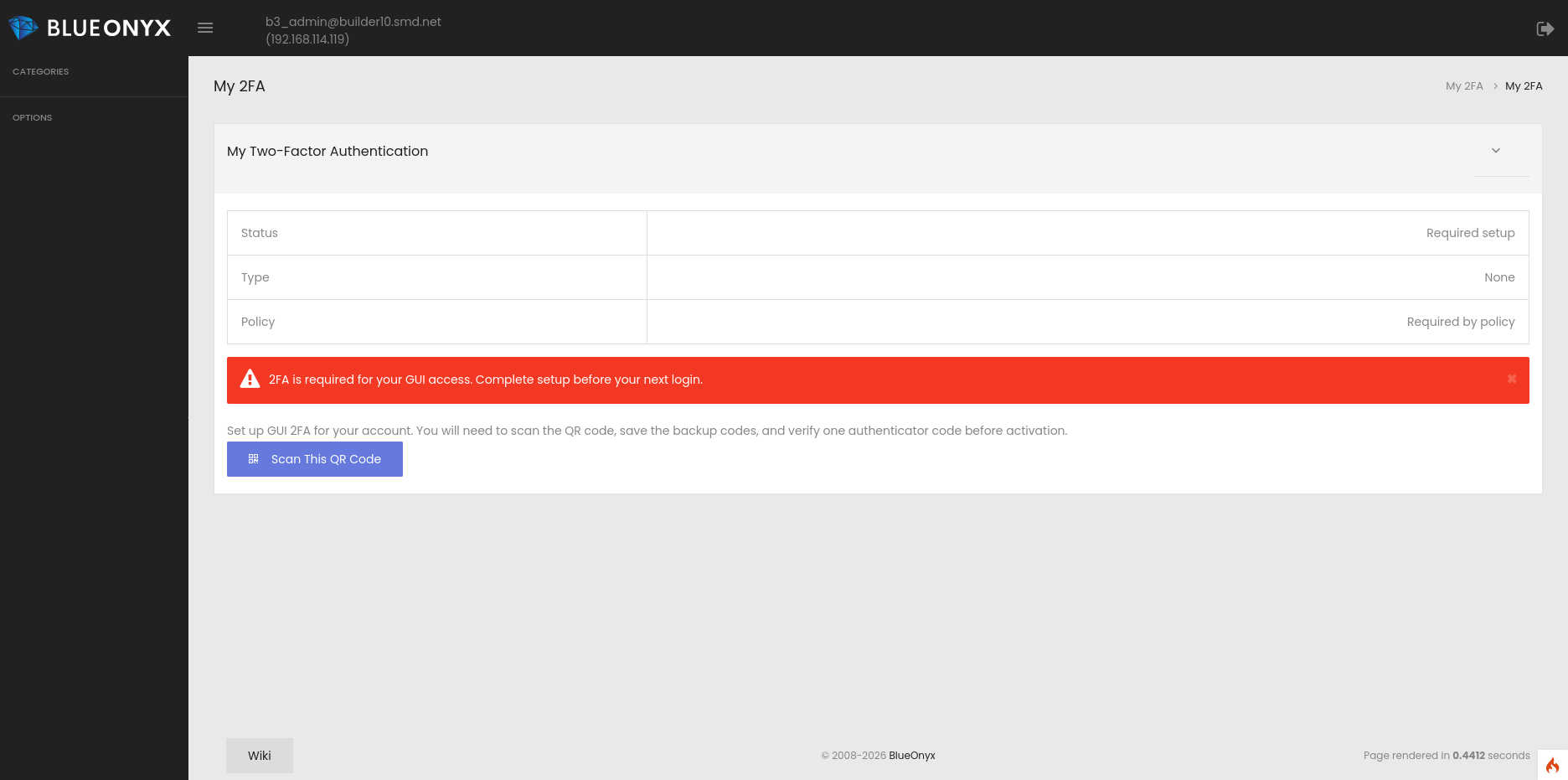
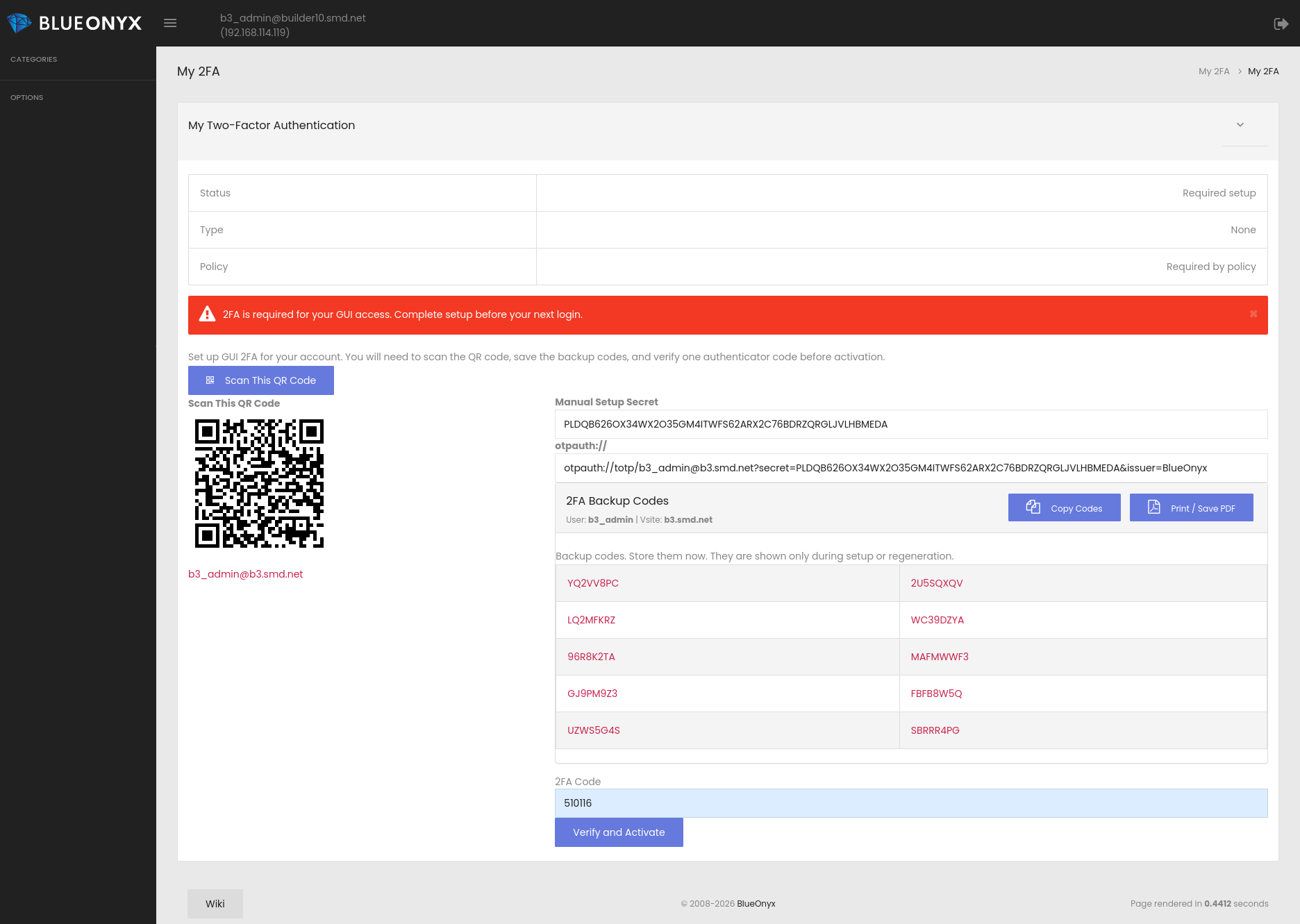
If 2FA is mandatory for a user and has not yet been configured, BlueOnyx redirects the user straight into the setup process and restricts full and unhindered GUI access until enrollment is completed successfully.
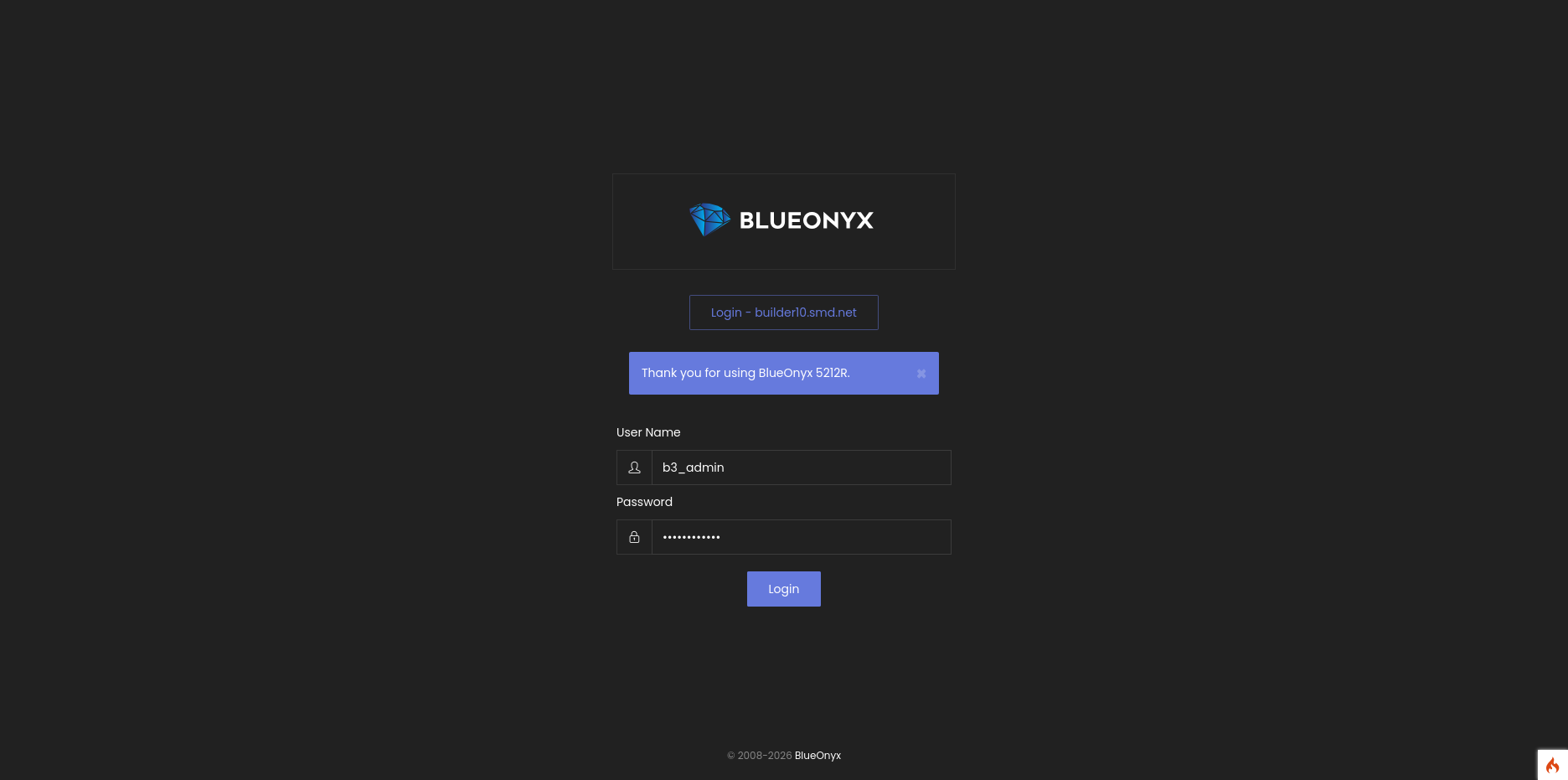 User logs in. |
2FA is mandatory. All menu items have been disabled until 2FA setup is complete and verified. |
|
2FA setup must be verified here. |
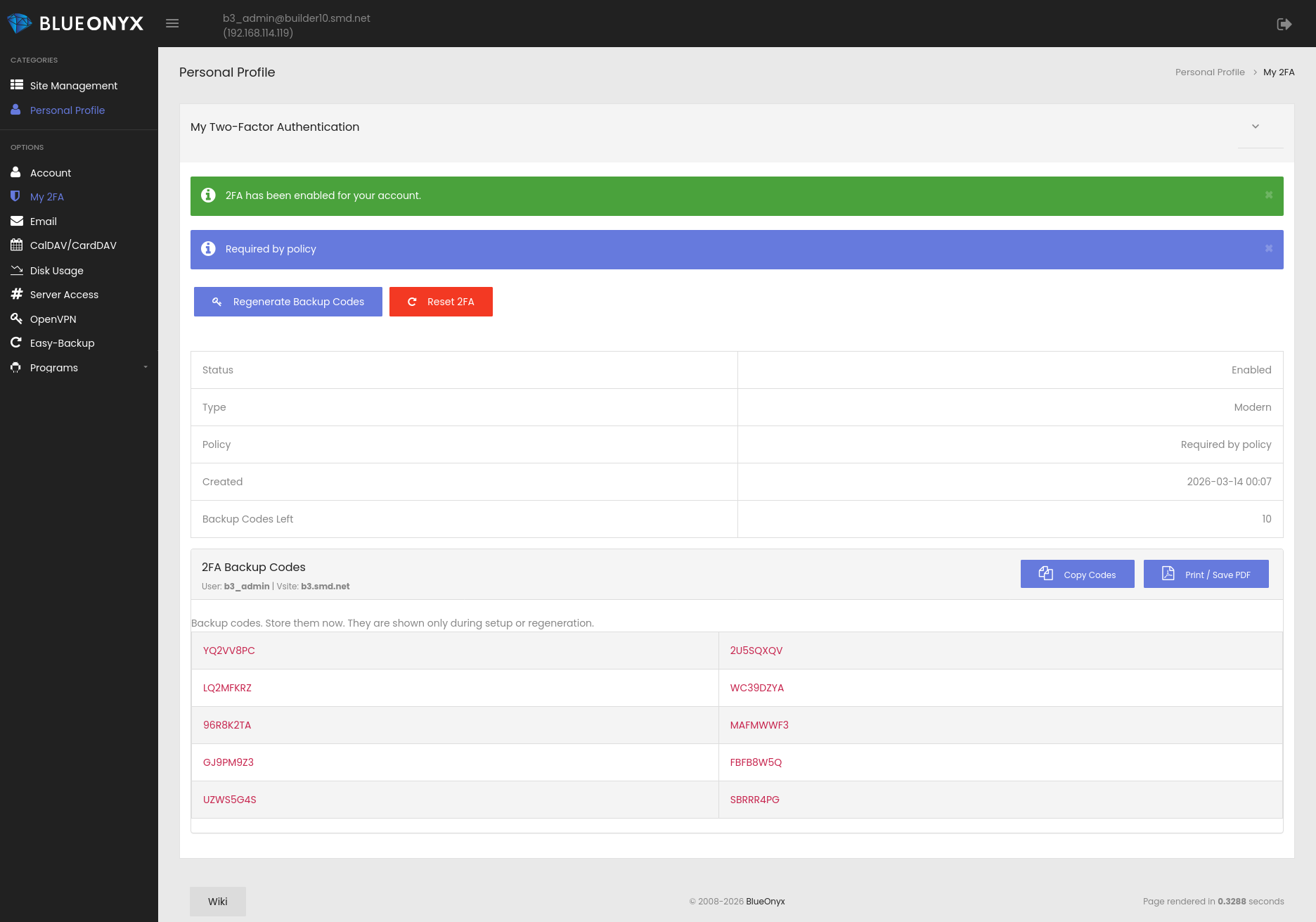
After successful verification the 2FA backup codes will be shown for the last time. |
|
Subsequent returns to this page will not show the backup codes, although new ones can be requested here and 2FA can be reset. Which triggers a new mandatory setup and verification. |
This helps ensure that security policy is not only defined, but actually enforced.
The personal 2FA page presents the setup information clearly, including QR code enrollment, backup codes, and status information in a compact and easier-to-understand format. Compatibility with authenticator tools such as 1Password is given.